How to Draft a Software License Agreement
Quick Summary
A Software License Agreement grants a licensee the right to use proprietary software under defined conditions, setting out service level agreements (SLAs), support options, financial terms, and liability limits. This step-by-step visual guide walks you through drafting and executing a Software License Agreement on Founding Legals.
Protect Your IP — Agreement Type
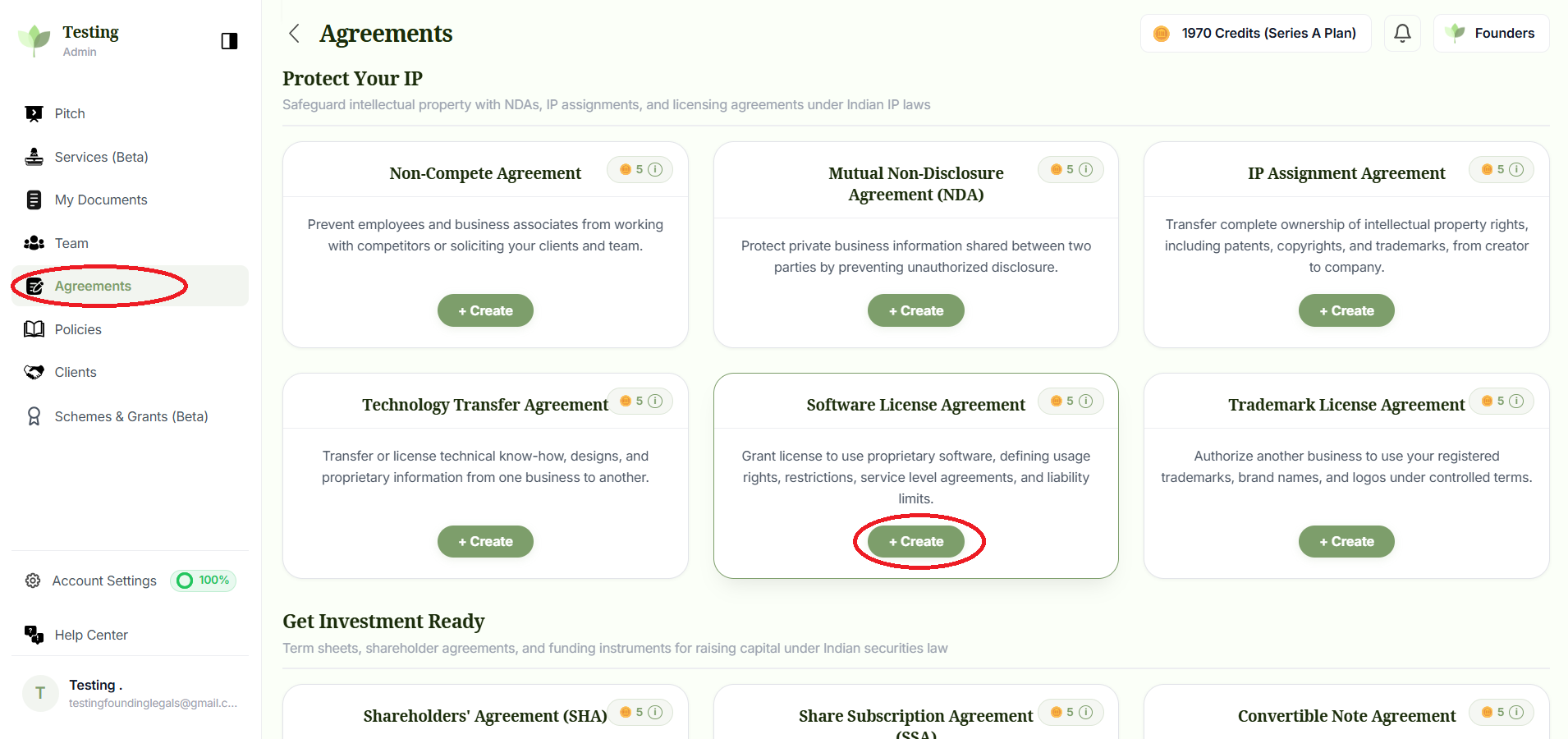
This agreement falls under the Protect Your IP category on the Founding Legals Agreements page, alongside the Non-Compete Agreement, Mutual Non-Disclosure Agreement (NDA), IP Assignment Agreement, Technology Transfer Agreement, and Trademark License Agreement.
Understanding the Software License Agreement
A Software License Agreement (SLA) is a legally binding contract between a software provider (Licensor) and an end-user or business client (Licensee). Unlike custom software development where ownership is transferred, a software license grants a limited, non-exclusive, and non-transferable right to use the software while the Licensor retains all core intellectual property ownership. This agreement regulates scope of use, licensing fees, support metrics (service level agreements or SLAs), maintenance timelines, governing jurisdiction, and dispute resolution parameters.
Step-by-Step Guide to Drafting a Software License Agreement
Access the module: Click on Agreements in the left-side navigation panel of the dashboard. Scroll to the Protect Your IP category and locate the Software License Agreement card. This agreement permits licensing proprietary software, defining usage rights, restrictions, SLAs, and liability limits. Click + Create.
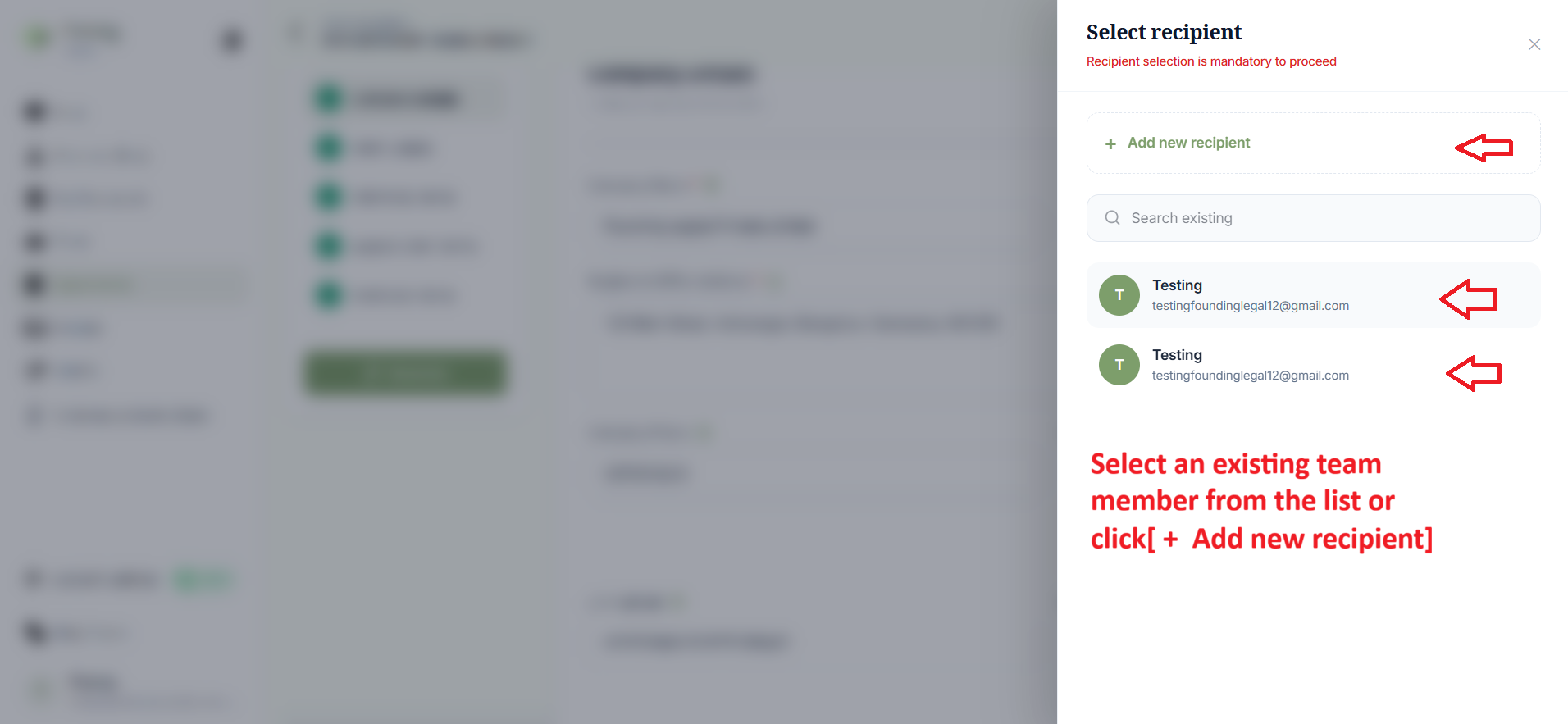
Assign the counterparty: The Select Recipient panel slides out from the right side of the page. Select an existing team member or corporate contact from the list, or click + Add new recipient to register a new user. Choosing a recipient is mandatory to proceed.
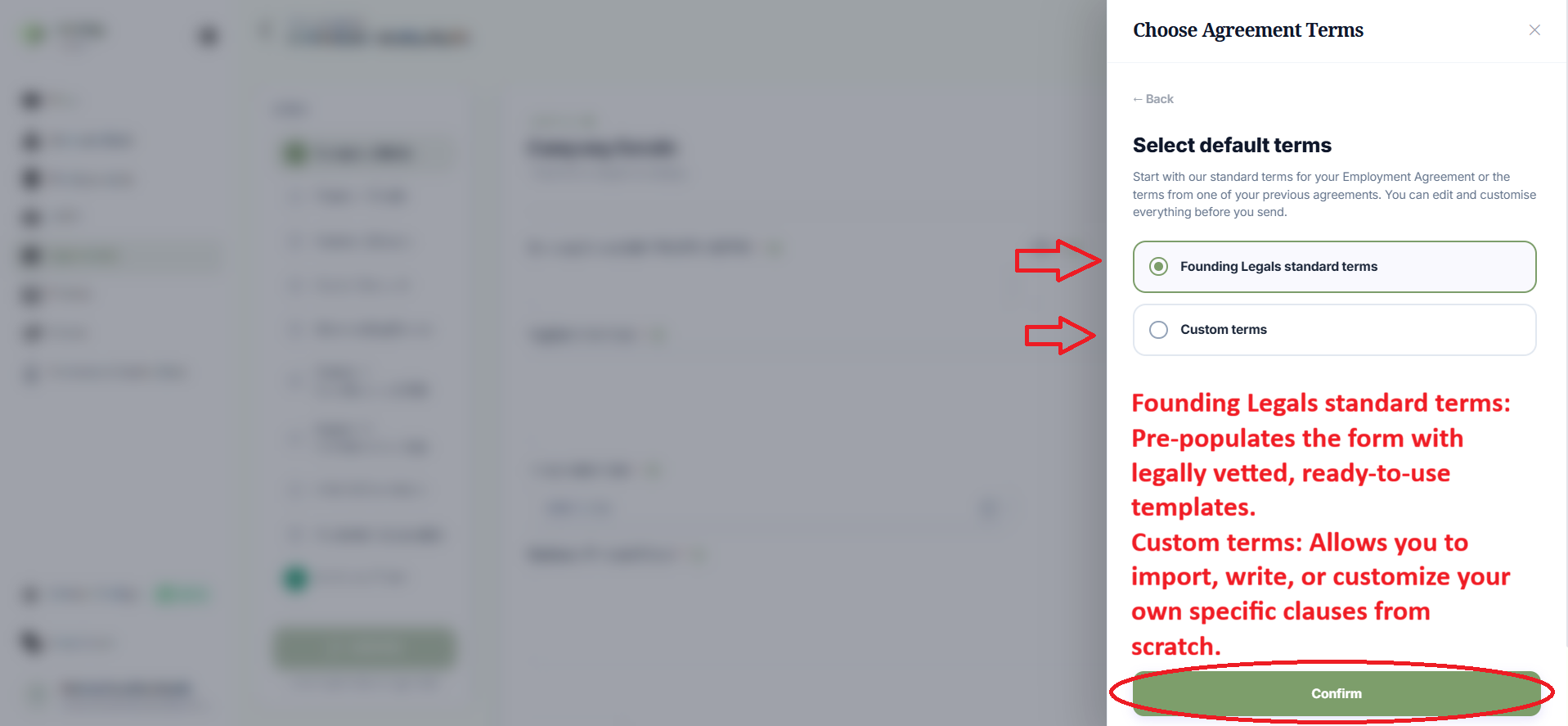
Select default or custom terms: The Choose Agreement Terms panel will appear. You can pick:
- Founding Legals standard terms: Pre-populates the form with legally vetted, ready-to-use templates that protect your proprietary code, enforce standard limits of liability, and outline warranty disclaimers.
- Custom terms: Pick this option to write, import, or paste your own custom clauses from scratch.
Select your terms baseline and click Confirm.
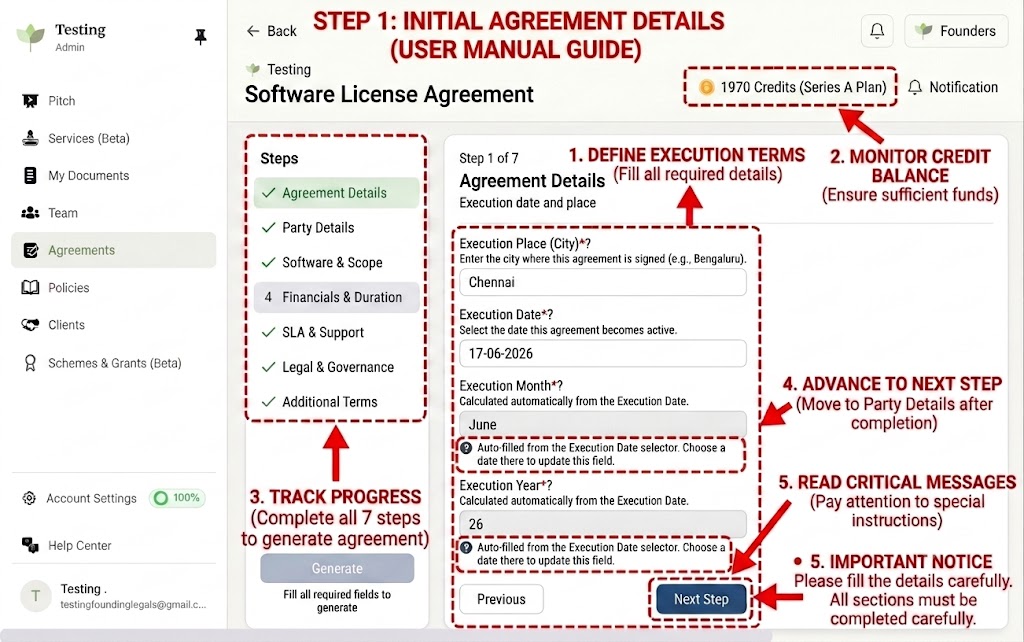
Specify the signing parameters and execution terms: Under Step 1 of the configuration flow, enter:
- Execution Place (City): Enter the city where this agreement is legally signed (e.g., Chennai).
- Execution Date: Click the calendar icon to select your exact signing date.
- Execution Month & Year: Auto-filled based on the date selected above.
Monitor your credit balance in the upper right. Click Next Step to save these details and proceed.
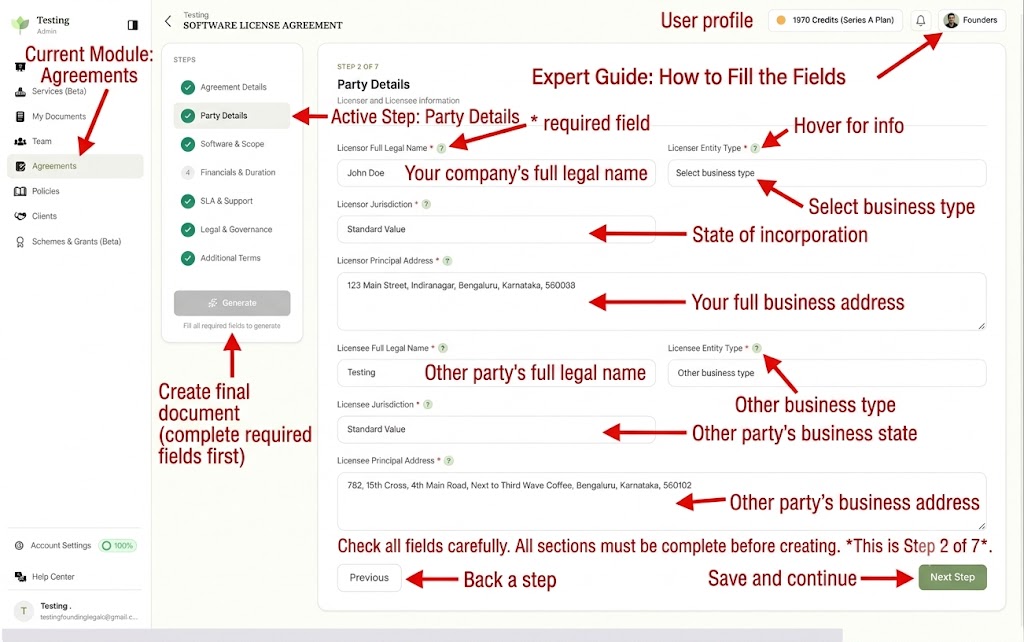
Enter the Licensor legal corporate details: In Step 2, provide the information for the company transferring the software rights:
- Licensor Full Legal Name: Enter the full registered corporate name of the Licensor entity (your company).
- Licensor Entity Type: Select the legal entity structure (e.g. Private Limited Company, Partnership, LLP).
- Licensor Jurisdiction: Enter the state of incorporation (e.g., Karnataka).
- Licensor Principal Address: Enter the complete physical registered office address.
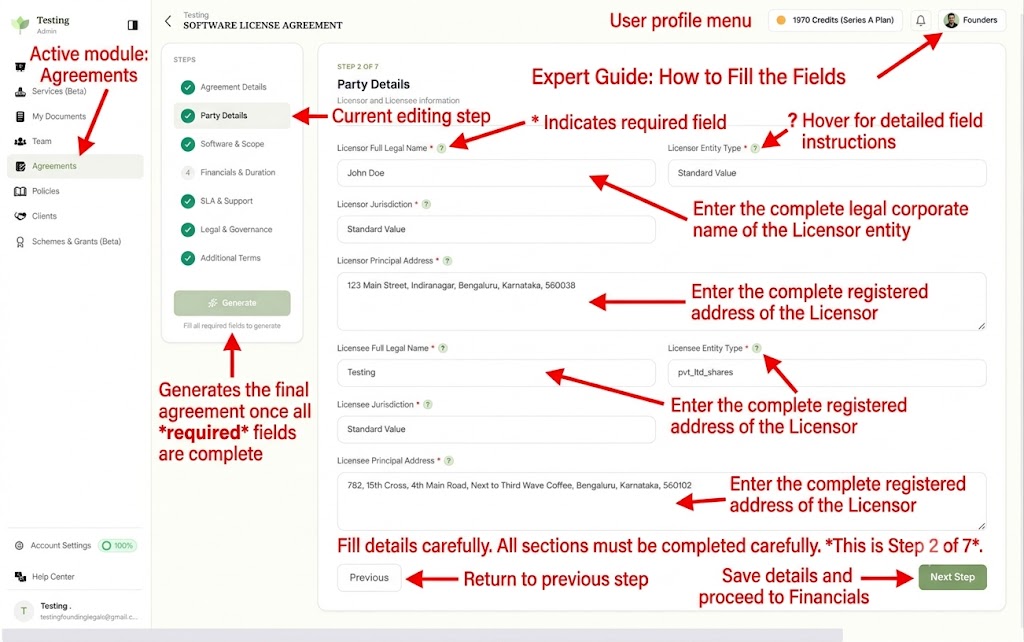
Enter the Licensee contact and statutory details: Scroll down to complete the counterparty details:
- Licensee Full Legal Name: Enter the full legal name of the entity receiving the license.
- Licensee Entity Type: Select the other party's business type (e.g., pvt_ltd_shares).
- Licensee Jurisdiction: Enter the licensee's registered state of incorporation.
- Licensee Principal Address: Enter the complete registered physical address of the licensee.
Ensure all required fields (indicated by a red asterisk) are completed carefully. Click Next Step to save and proceed to the software scope.
Define the software asset and license grant boundaries: In Step 3, you will configure:
- Licensed Software Description: State the exact name, version, and component modules of the software package.
- License Type: Select the structure (e.g., User-based, Server-based, Site license, Enterprise-wide).
- Scope of Use / Authorized Users: Detail who is permitted to access the software (e.g., employees, contractors, third-party agents).
- Usage Restrictions: Enforce restrictions against reverse engineering, renting, sublicensing, or copying the source code.
Click Next Step to proceed to the financials step.
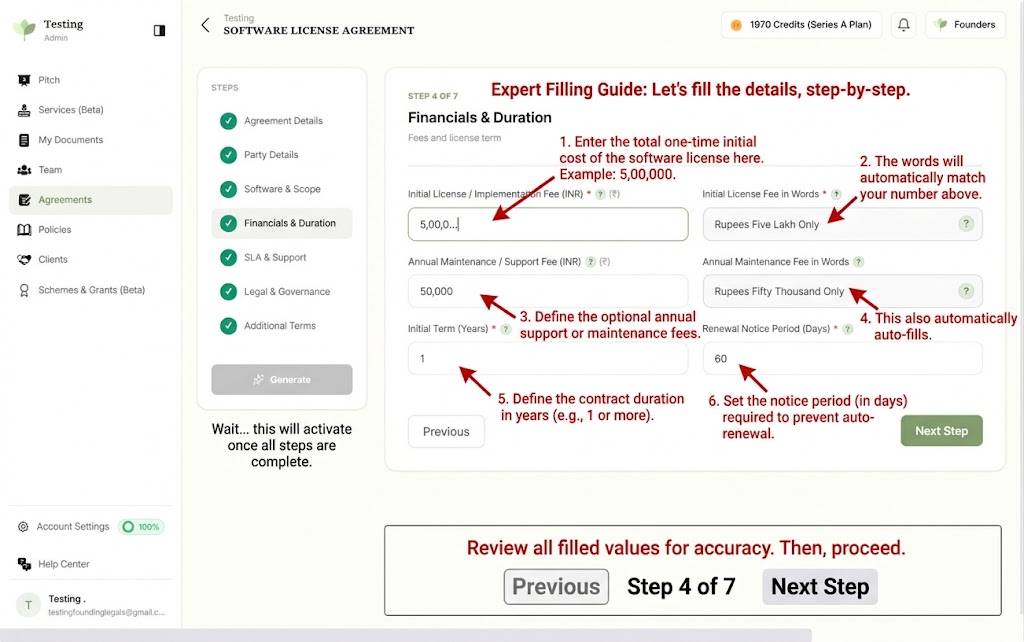
Configure fees, maintenance, and renewal terms: Step 4 establishes the commercial and duration metrics:
- Initial License / Implementation Fee (INR): Enter the one-time initial cost of the software license (e.g., 5,00,000).
- Initial License Fee in Words: Automatically auto-fills based on the number input above (e.g., Rupees Five Lakh Only).
- Annual Maintenance / Support Fee (INR): Define the optional annual support or maintenance fees (e.g., 50,000).
- Annual Maintenance Fee in Words: Automatically auto-fills based on your number.
- Initial Term (Years): Define the contract duration in years (e.g., 1 or more).
- Renewal Notice Period (Days): Set the notice period required to prevent auto-renewal (e.g., 60 days).
Review all filled values for accuracy. Click Next Step to save and continue.
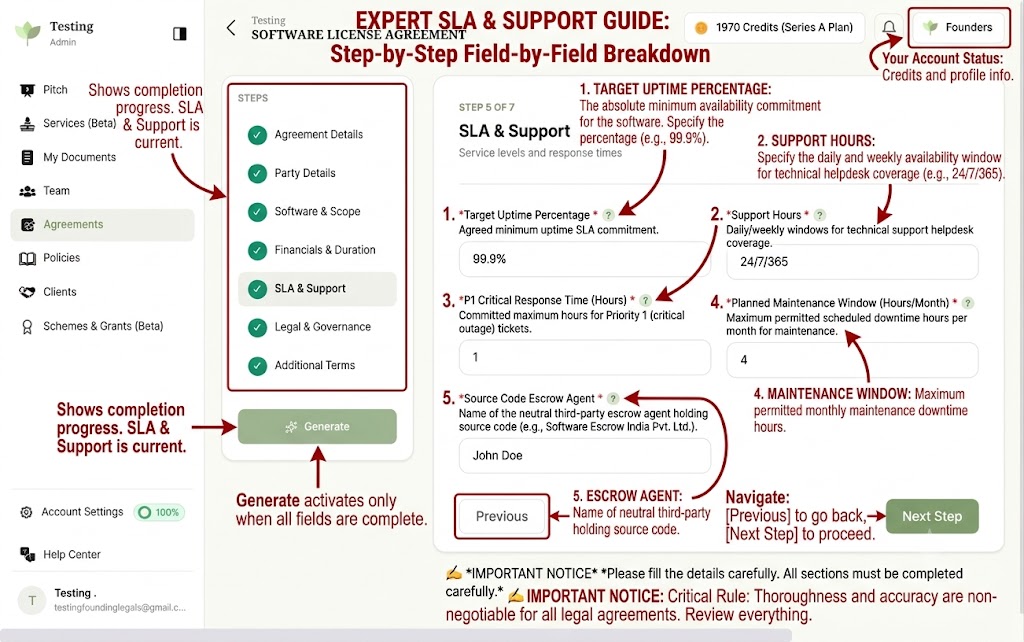
Establish support metrics and response thresholds: Step 5 outlines the service level agreements:
- Target Uptime Percentage: Enter the absolute minimum availability commitment for the software (e.g., 99.9%).
- Support Hours: Specify the daily and weekly availability window for technical helpdesk coverage (e.g., 24/7/365).
- P1 Critical Response Time (Hours): Specify the committed maximum hours for Priority 1 (critical outage) tickets (e.g., 1 hour).
- Planned Maintenance Window (Hours/Month): Specify the maximum permitted monthly maintenance downtime hours (e.g., 4).
- Source Code Escrow Agent: Enter the name of the neutral third-party escrow agent holding source code (e.g., Software Escrow India Pvt. Ltd.) to protect the licensee if the licensor ceases support.
Click Next Step to proceed.
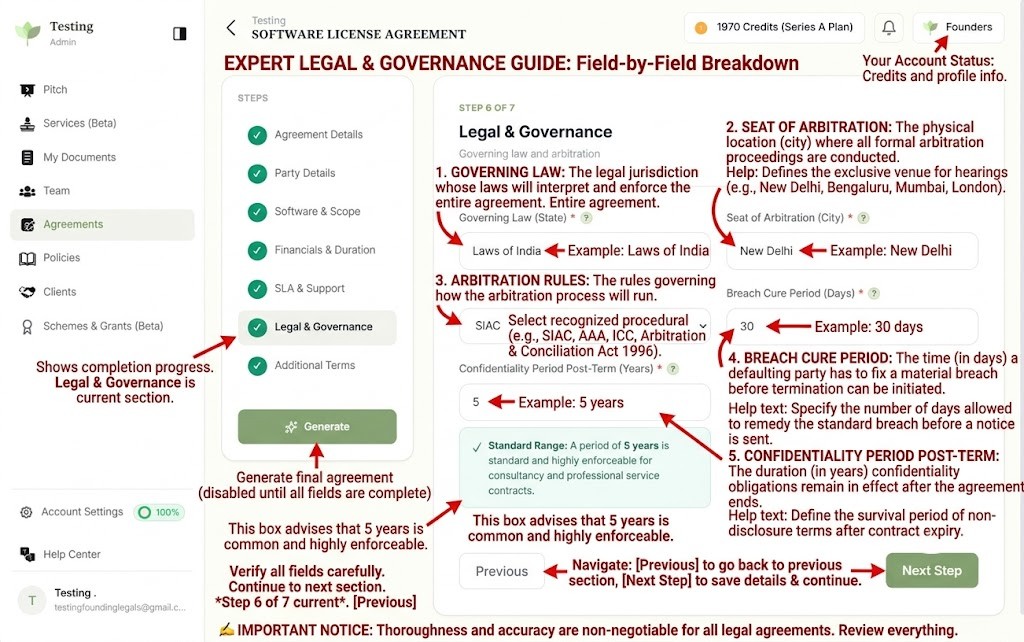
Define the legal jurisdiction, arbitration rules, and default cure terms: Step 6 sets the governance framework:
- Governing Law (State): Enter the legal jurisdiction whose laws will interpret the agreement (e.g., Laws of India).
- Seat of Arbitration (City): Enter the physical location (city) where all formal arbitration proceedings are conducted (e.g., New Delhi).
- Arbitration Rules: Select the rules governing the arbitration process (e.g., SIAC, AAA, ICC, or Arbitration & Conciliation Act 1996).
- Breach Cure Period (Days): Enter the number of days a defaulting party has to fix a material breach before termination can be initiated (e.g., 30 days).
- Confidentiality Period Post-Term (Years): Define the survival period of non-disclosure terms after contract expiry (e.g., 5 years is the advised standard).
Click Next Step to save details and continue to additional terms.
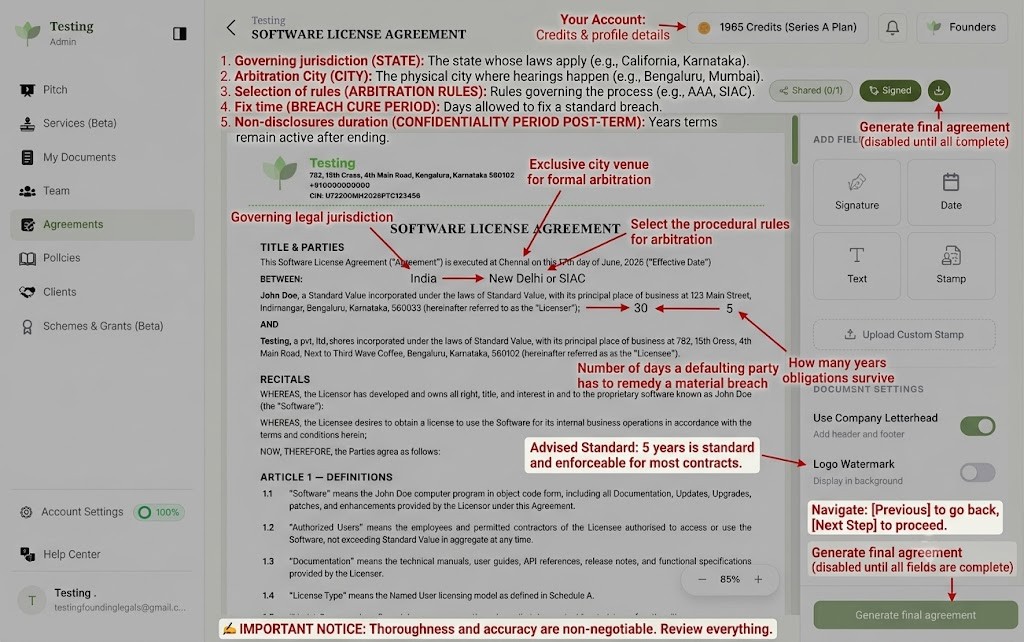
Check details, position fields, and execute the license: Step 7 presents the final draft template:
- Verify variables: Check variables like Governing Law (India), Seat of Arbitration (New Delhi or SIAC), Breach Cure Period (30 days), and post-term Confidentiality (5 years) inside the document preview.
- Add Fields: Drag and drop the interactive blocks (Signature, Date, Text, Stamp) onto the document pages.
- Letterhead & Watermarks: Toggle Use Company Letterhead or Logo Watermark in the right-hand panel settings.
- Finalize: Click Shared to send to the counterparty or click Generate final agreement once all fields are signed.
Under Indian tax laws, licensing of software is categorized as a "supply of services" and attracts GST at 18% (applicable on both outright licenses and SaaS subscription models). Furthermore, software license fees, implementation fees, and annual maintenance/support fees (SLA fees) are subject to Tax Deducted at Source (TDS) under Section 194J of the Income Tax Act, 1961. The deductor is required to deduct TDS at 10% (for technical services or royalty) or 2% (for certain technical helpdesk support services). Failing to incorporate these statutory withholdings in invoice calculations can lead to interest penalties and audits.
Avoid simple uptime commitments without clear remedies. A premium SLA must specify "Uptime Credits", detailing that if the uptime drops below the target (e.g. 99.9%), the licensee receives a pro-rata credit against the next month's invoice rather than treating it as an immediate contract breach. Additionally, if you use a Source Code Escrow Agent, ensure that the release triggers are extremely narrow—limited to insolvency, bankruptcy, or failure of the licensor to maintain the software for more than 30 consecutive days.
Quality Assurance
Reviewed by Manoj Kumar Thota
Founder / Developed Founding Legals
About the Author
Manoj Kumar Thota is the creator behind Founding Legals