How to Draft an Intellectual Property (IP) Assignment Agreement
Quick Summary
An Intellectual Property (IP) Assignment Agreement permanently transfers ownership of intellectual property rights (such as software, patents, trademarks, or designs) from an individual creator or entity to a company. Learn how to define assignors, assignees, IP schedules, payment terms, and execute it legally on Founding Legals.
Protect Your IP — Agreement Type
This agreement falls under the Protect Your IP category on the Founding Legals Agreements page, alongside the Non-Compete Agreement, Mutual Non-Disclosure Agreement (NDA), Technology Transfer Agreement, Software License Agreement, and Trademark License Agreement.
Understanding the IP Assignment Agreement
For startups and early-stage companies, ownership of intellectual property (IP) is the single most critical asset driving company valuation, investment readiness, and competitive advantage. Often, IP (such as source code, designs, branding, or algorithms) is created by founders, contractors, or external agencies before the company is officially incorporated or outside of formal employment contracts. An IP Assignment Agreement acts as a permanent, legally binding bridge that transfers all right, title, and interest in such IP from the creator (the Assignor) to the company (the Assignee).
Step-by-Step Guide to Creating an IP Assignment Agreement
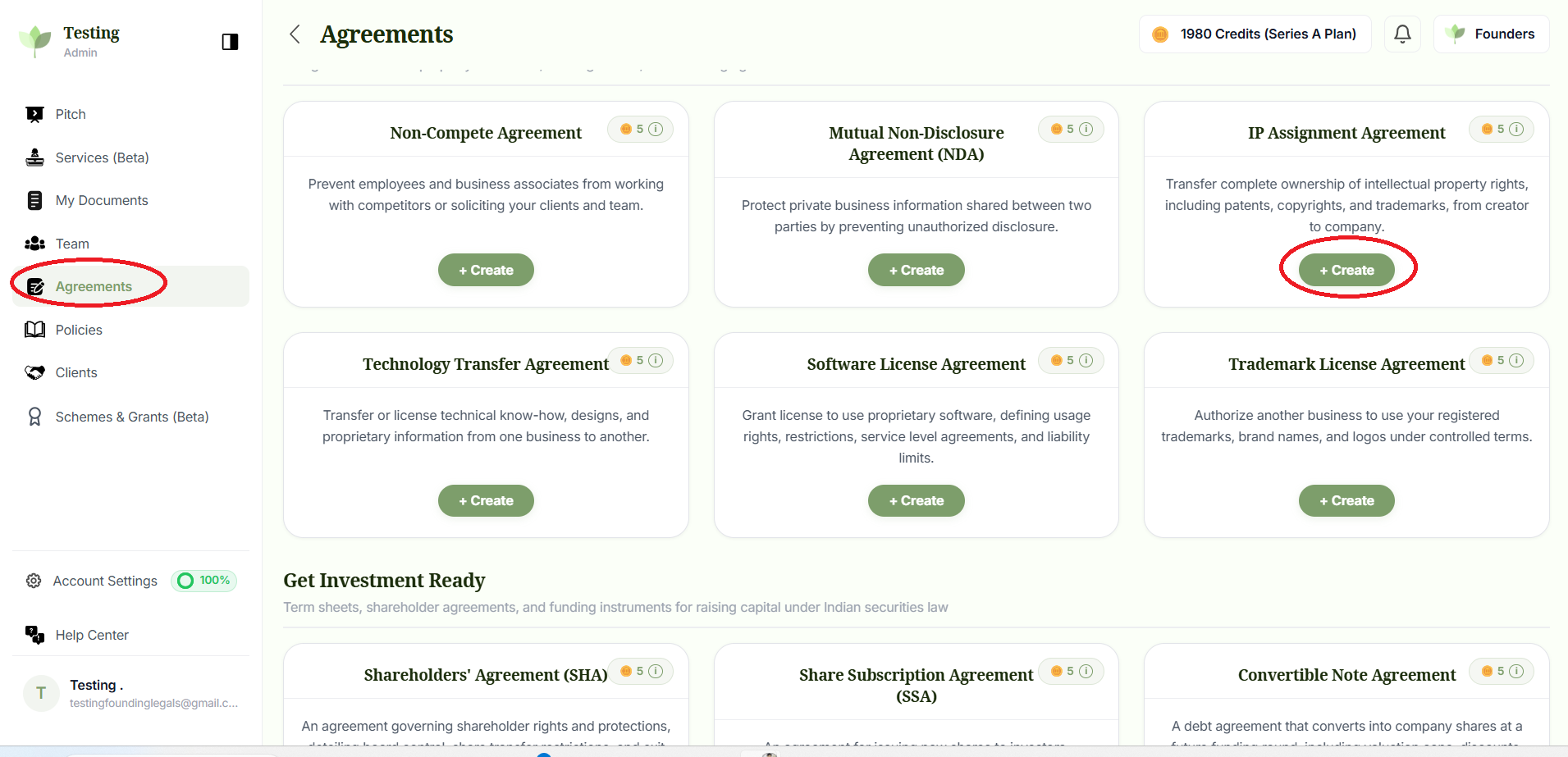
Access the module: Click on Agreements in the left-side navigation panel of the dashboard. Scroll to the Protect Your IP category and locate the IP Assignment Agreement card. This agreement permanently transfers complete ownership of intellectual property rights, including patents, copyrights, and trademarks, from creator to company. Click + Create.
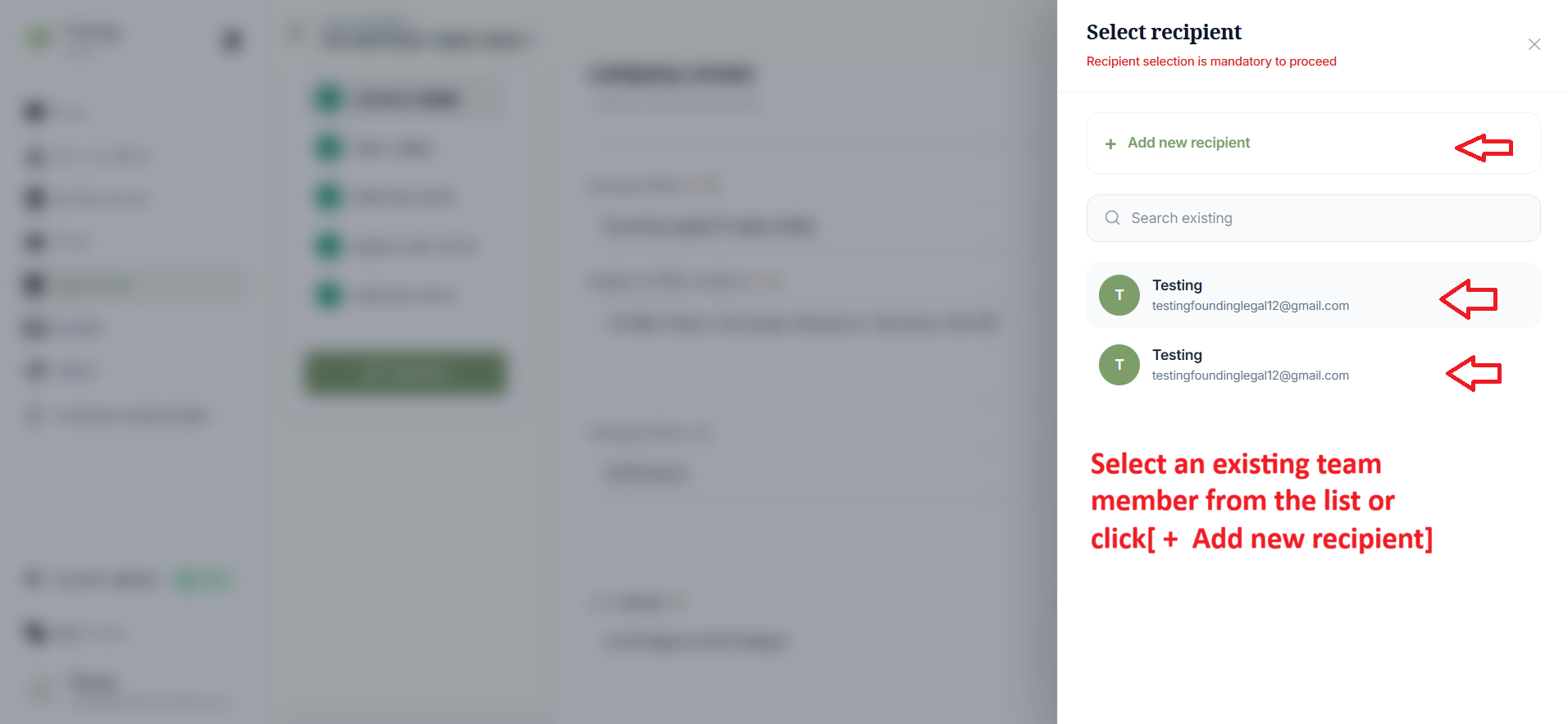
Assign the counterparty: The Select Recipient panel slides out from the right side of the page. Choose the creator (the individual or entity transferring the IP rights) from your existing contacts, or click + Add new recipient to register a new user. Recipient selection is mandatory to configure and execute the document.
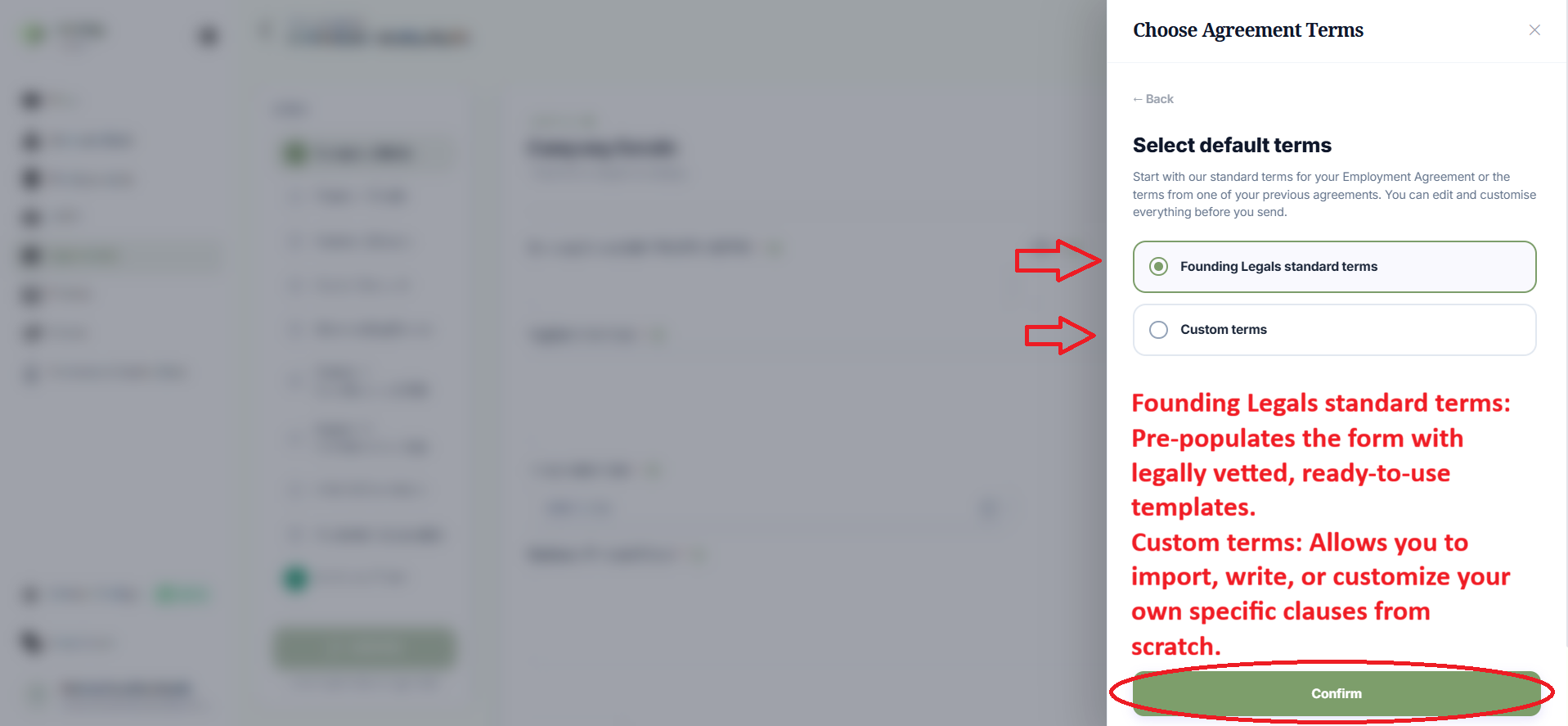
Select default or custom terms: The Choose Agreement Terms panel will appear. You can pick:
- Founding Legals Standard Terms: Automatically pre-populates standard IP assignment language (including comprehensive transfer of moral rights, waiver of future claims, and indemnification against third-party IP infringement).
- Custom Terms: Choose this to import your legal team's specific assignment clauses.
Make your choice and click Confirm.
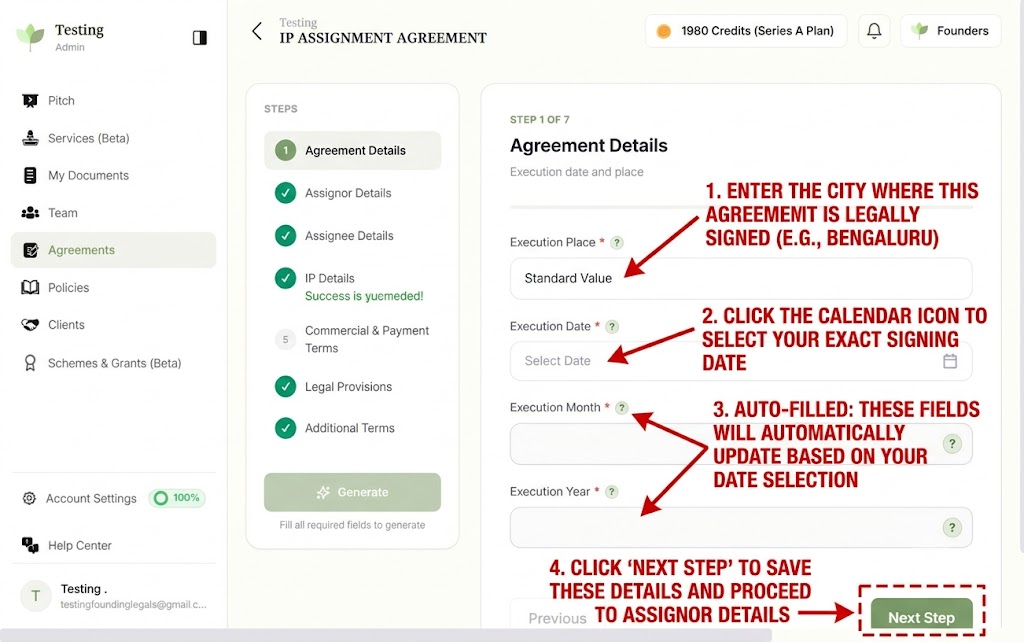
Specify the signing parameters: Under Step 1 of the configuration flow, enter:
- Execution Place: Enter the city where this agreement is legally signed (e.g., Bengaluru).
- Execution Date: Select the date of signing from the calendar.
- Execution Month & Year: Auto-filled based on the date selected above.
Click Next Step to save and proceed.
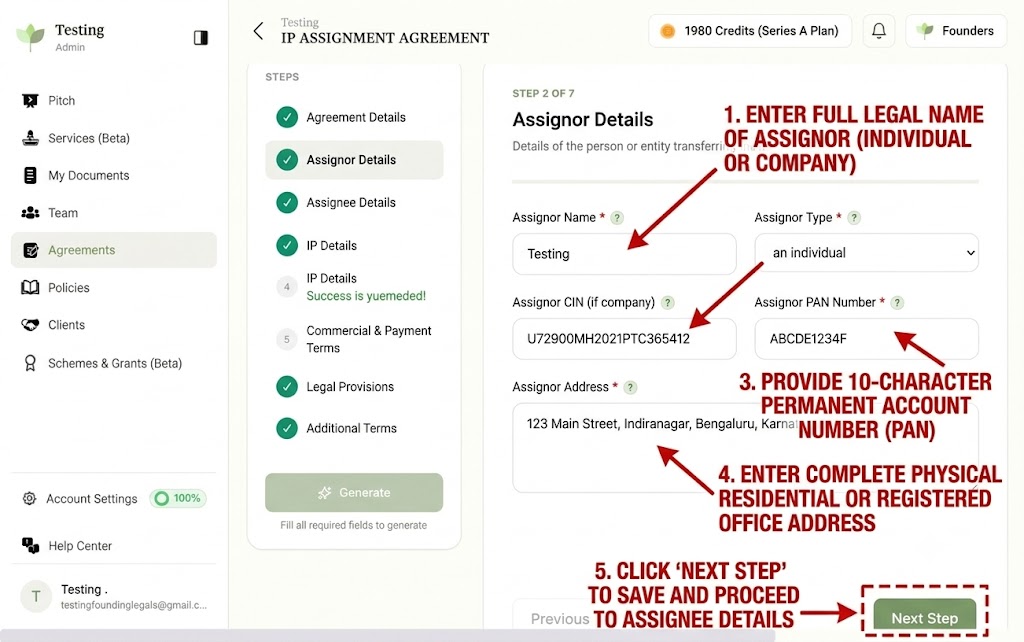
Enter the creator's legal information: Step 2 gathers the details of the party transferring the IP:
- Assignor Name: Full legal name of the individual creator or company.
- Assignor Type: Select whether the Assignor is "an individual" or "a company".
- Assignor CIN (if company): If the Assignor is a corporate entity, provide their 21-character Corporate Identification Number.
- Assignor PAN Number: Enter the Assignor's 10-character alphanumeric Permanent Account Number (PAN). This is required for taxation and stamp duty verification.
- Assignor Address: Complete residential address (for individuals) or registered office address (for companies).
Click Next Step to proceed.
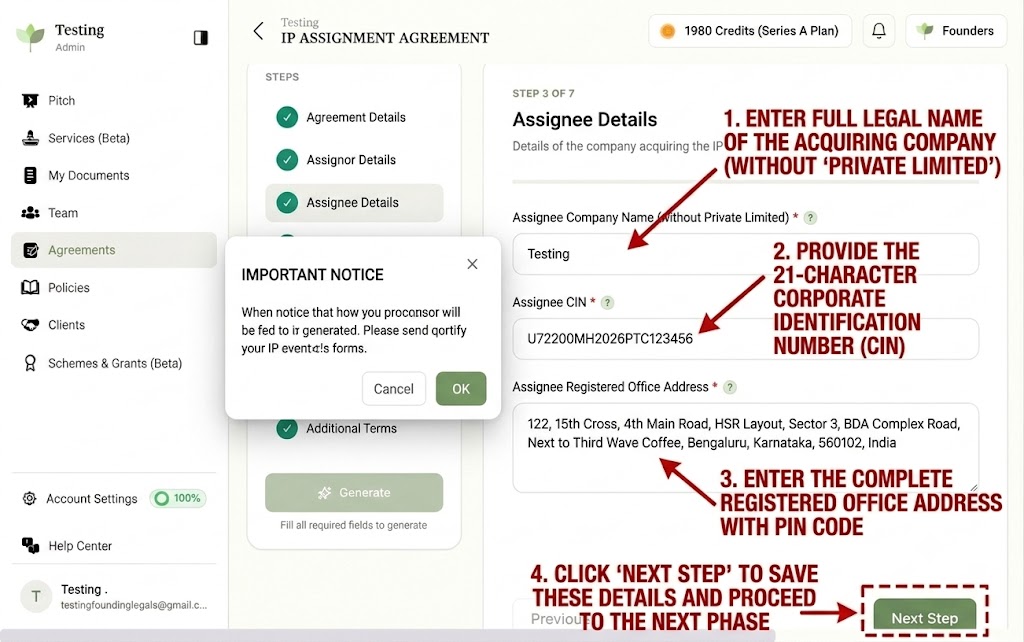
Enter the acquiring company's details: Step 3 gathers information for the company acquiring the IP:
- Assignee Company Name (without Private Limited): Enter the legal name of your company, excluding the "Private Limited" suffix.
- Assignee CIN: Enter your company's Corporate Identification Number.
- Assignee Registered Office Address: Enter your company's registered address with the pin code.
Read any important system alerts that pop up, click OK on notifications, and click Next Step to proceed.
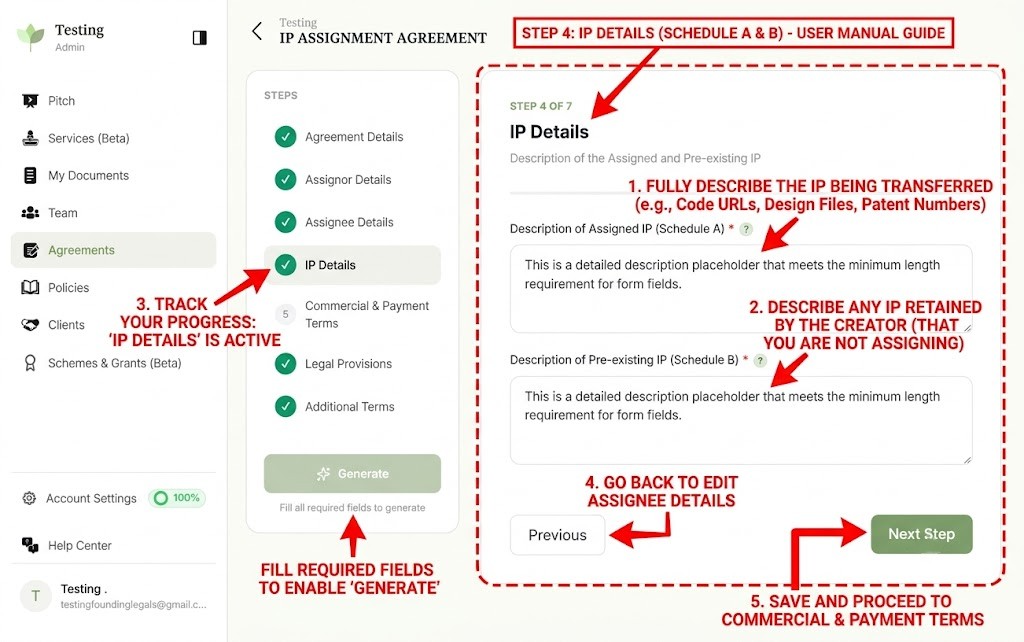
Delineate assigned IP vs. retained IP: Step 4 contains the core operational definition of the IP assets. You must fill out two schedules:
- Description of Assigned IP (Schedule A): Fully describe the intellectual property being transferred. Be as specific as possible (e.g., "Source code repository located at github.com/org/repo, UX/UI designs, system architectures, domain names, patents, and associated databases created for the product.").
- Description of Pre-existing IP (Schedule B): List any intellectual property owned or developed by the Assignor *prior* to this engagement or outside this project that is NOT being assigned to the company. If none, write "None" or "Not Applicable."
Click Next Step to save schedules and proceed.
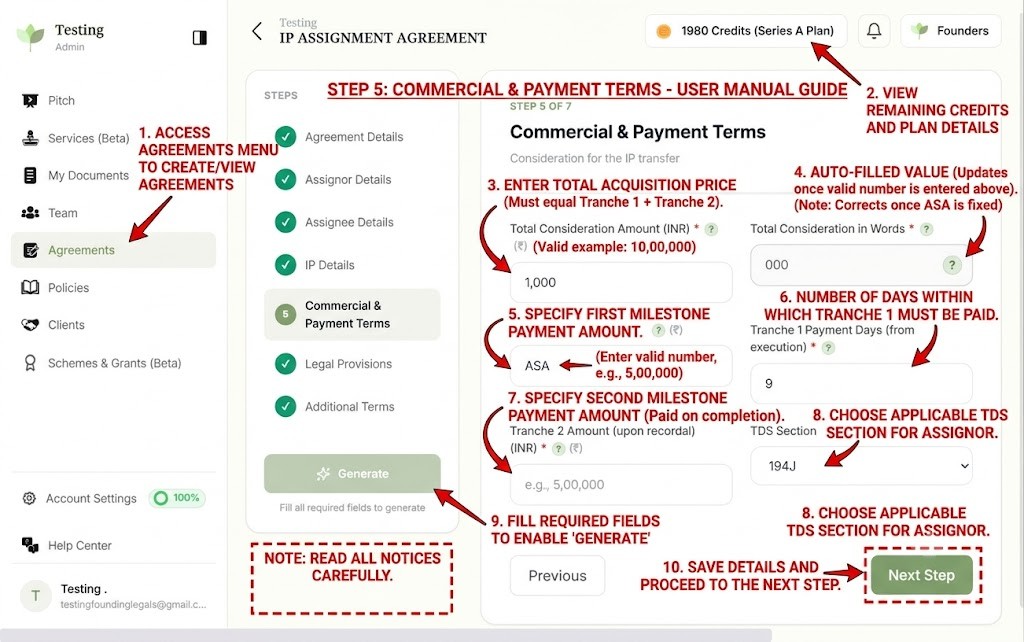
Configure consideration and tax sections: An assignment without consideration is void under Indian contract law. Fill in the financial structures in Step 5:
- Total Consideration Amount (INR): Enter the total acquisition price. The total must match the sum of Tranche 1 and Tranche 2 (e.g., 10,00,000).
- Total Consideration in Words: Auto-calculated and rendered.
- Tranche 1 Payment Amount (INR): Specify the first milestone payment due (e.g., 5,00,000).
- Tranche 1 Payment Days: Enter the number of days after agreement execution within which Tranche 1 must be paid.
- Tranche 2 Amount (upon recordal) (INR): Enter the final payment amount (e.g., 5,00,000) due after formal registration/recordal.
- TDS Section: Choose the applicable Tax Deducted at Source (TDS) section for the assignor (e.g., Section 194J for technical/professional service fees).
Click Next Step to save and move forward.
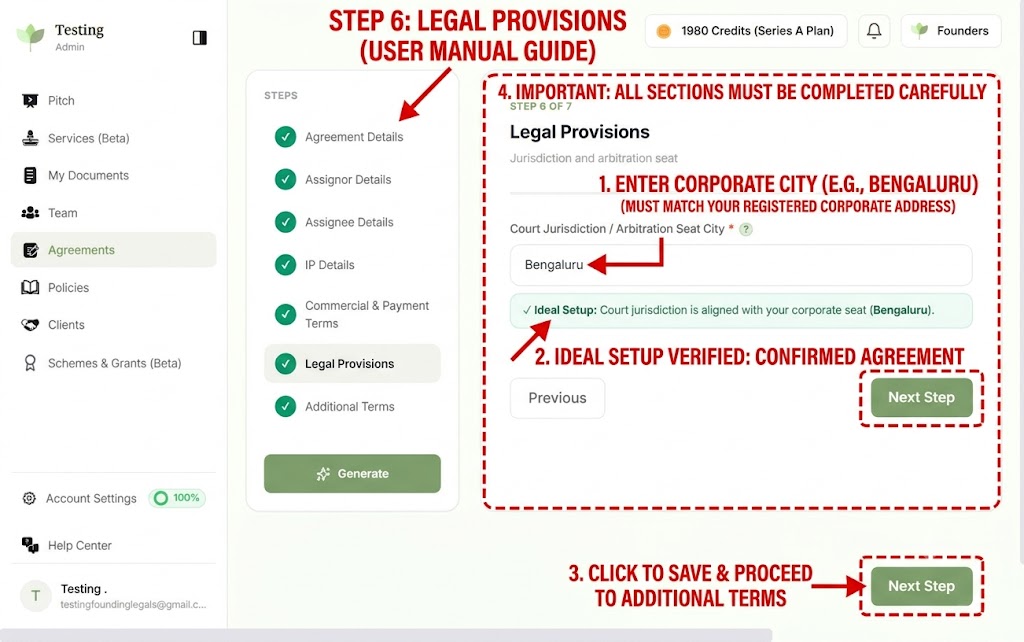
Select the seat of dispute resolution: In Step 6, enter:
- Court Jurisdiction / Arbitration Seat City: Specify the city where courts have exclusive jurisdiction and where arbitration will take place (e.g., Bengaluru). The platform verifies that this aligns with the company registered corporate seat.
Click Next Step to save legal provisions.
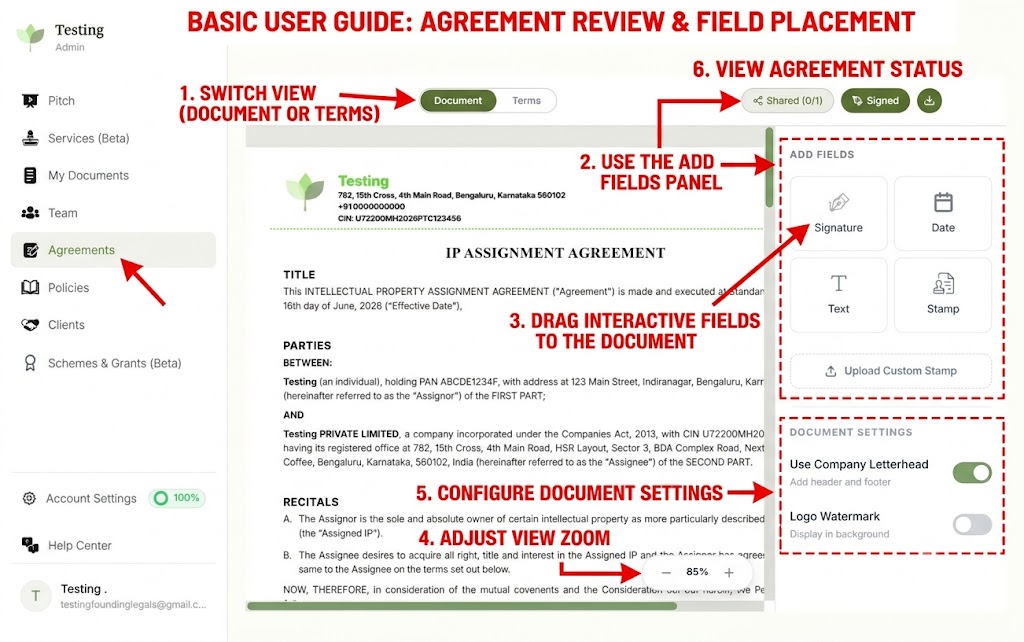
Review and execute the assignment document: On the final step, preview the full IP Assignment Agreement. Verify the title, the parties, recitals, and intellectual property descriptions. To finalize:
- Drag Interactive Fields: Drag and drop the Signature, Date, and Stamp blocks onto the respective signatory sections for both the Assignor and the Assignee.
- Configure Layout Settings: Choose whether to use your company letterhead, background watermarks, or adjust the viewer zoom controls.
- Send for Signing: Click the Shared button to dispatch the document to the Assignor for digital signature. The progress can be monitored in the main dashboard until the status changes to Signed.
Under Indian copyright law, assignments are strictly regulated. Section 19 of the Copyright Act, 1957 mandates that an assignment of copyright is not legally valid unless it is in writing and signed by the assignor. Furthermore, it must explicitly specify the assigned work, the rights assigned, the duration, and the territorial extent of the assignment. If the agreement fails to specify the duration, it defaults to 5 years by law. If the territory is omitted, it defaults to India only. The Founding Legals template is pre-configured to specify a perpetual and worldwidetransfer to avoid these statutory defaults and protect your company's global ownership.
The clarity of your schedules is what prevents costly litigation down the line. Make sure that Schedule A (Assigned IP) explicitly names all repositories, design links, databases, and trade secrets, rather than relying on a vague statement like "all work done." Conversely, if the founder or contractor has previous open-source libraries or patented algorithms they intend to leverage, these must be explicitly excluded under Schedule B (Pre-existing IP) to avoid claiming ownership over third-party or prior assets.
Quality Assurance
Reviewed by Manoj Kumar Thota
Founder / Developed Founding Legals
About the Author
Manoj Kumar Thota is the creator behind Founding Legals