How to Draft and Issue an Offer Letter
Quick Summary
An Offer Letter is the first formal document that establishes a hiring relationship between your company and a new employee. Learn how to configure company details, define compensation structures, set employment terms, and issue a legally sound offer letter on Founding Legals.
Drafting Your Offer Letter
An offer letter is not just a formality — it is the first legally significant document in an employee's lifecycle with your company. It defines compensation, job title, joining date, and the governing terms under which employment begins. The Founding Legals platform guides you through a structured 6-step wizard to produce a compliant, professionally formatted offer letter in minutes.
Step-by-Step Guide to Creating an Offer Letter
Access the module: From your Founding Legals dashboard, click Agreements in the left navigation panel. The platform will confirm you are creating an Offer Letter by displaying it in the breadcrumb at the top of the screen. The left-hand sidebar shows the six steps of the wizard: Company Details, Candidate Details, Offer & Joining Terms, Compensation Structure, Employment Terms, and Additional Terms. Each step must be completed in sequence before clicking Generate.
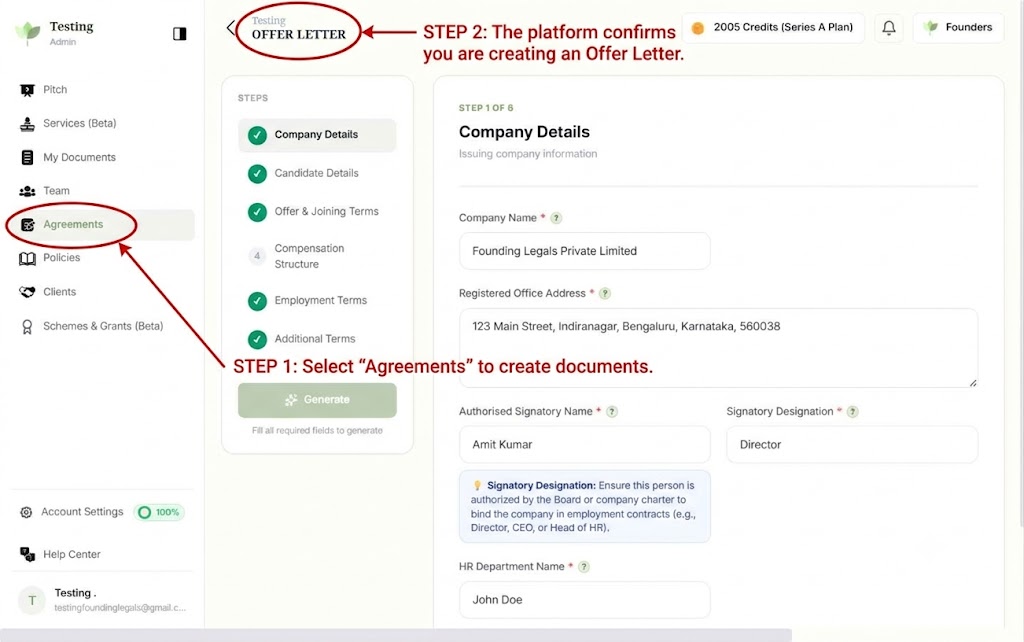
Enter your company's issuing information: This step captures the legal identity of the employer and the authorized signatory. Fill in the following fields:
- Company Name: Enter the full registered name including the corporate suffix (e.g., Founding Legals Private Limited).
- Registered Office Address: Provide the complete address as registered with the MCA. This address appears on the letterhead and governs jurisdictional applicability.
- Authorised Signatory Name: Enter the full name of the individual authorized by the Board or company charter to sign employment contracts (e.g., Director, CEO, or Head of HR).
- Signatory Designation: Enter their official designation. Ensure this matches their Board resolution to maintain enforceability.
- HR Department Name: Enter the name of the HR representative managing the onboarding process. This person is named in the joining instructions section of the letter.
Click the ❓ Question Mark Icon next to any field for inline guidance. Once all fields are complete, click Next Step to proceed.
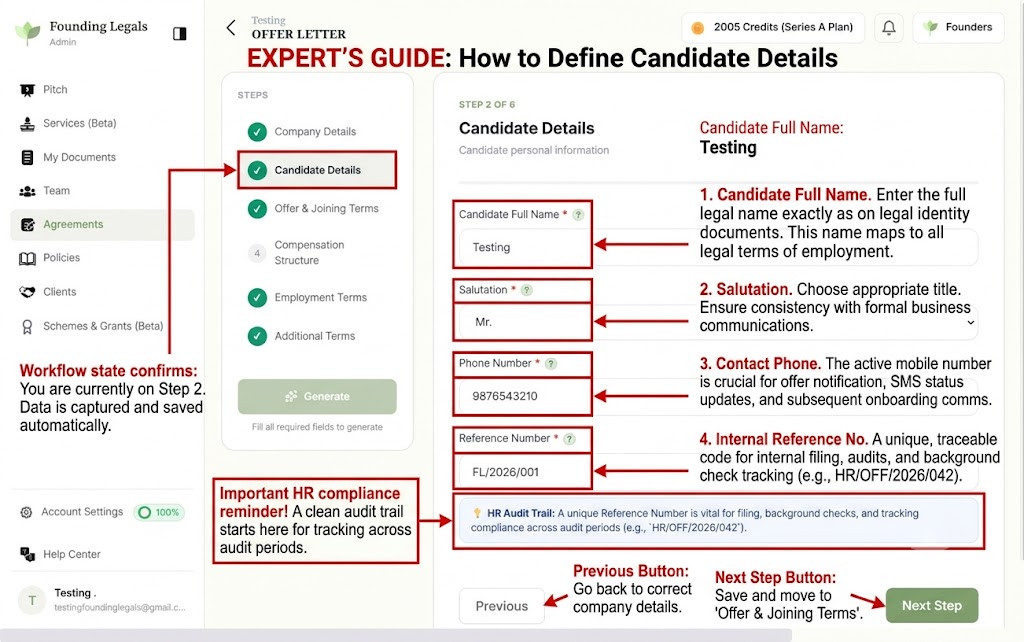
Enter the candidate's personal information: Accurate candidate details are critical as they map directly into all legal terms of the offer letter. Enter the following:
- Candidate Full Name: Enter the full legal name exactly as it appears on the candidate's government-issued identity documents (PAN card, Aadhaar). Any discrepancy may invalidate background checks or onboarding documents.
- Salutation: Select the appropriate formal title (Mr., Ms., Dr., etc.) to maintain consistency in all business communications.
- Phone Number: Enter the candidate's active mobile number. This is used for offer notification, SMS alerts, and subsequent onboarding communications.
- Reference Number: Assign a unique internal tracking code for HR filing, audit trails, and background check tracking (e.g., FL/2026/001 or HR/OFF/2026/042). This code helps identify the offer across payroll, compliance, and legal systems.
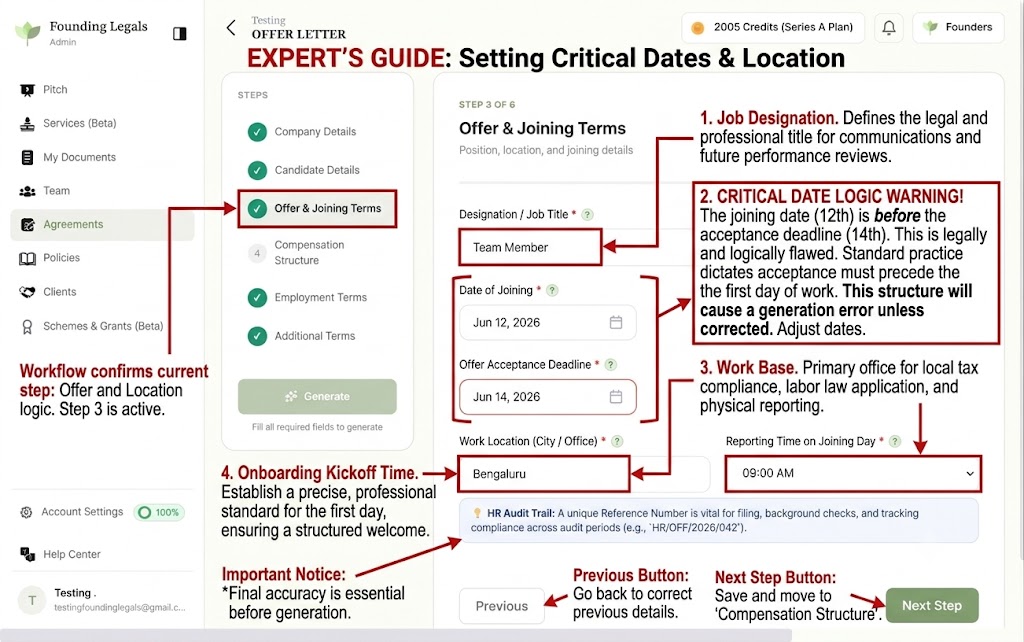
Define the candidate's position and onboarding schedule: This step governs the core operational parameters of the employment relationship. Complete each field carefully:
- Designation / Job Title: Enter the official job title that will appear on the offer letter, employment contract, and future performance reviews (e.g., Senior Software Engineer, Team Member).
- Date of Joining: Select the confirmed first working day. This date is legally binding and triggers statutory entitlements such as PF enrollment and leave accruals.
- Offer Acceptance Deadline: Set the deadline by which the candidate must accept or reject the offer. This date must always fall before the Date of Joining. A joining date earlier than the acceptance deadline is logically and legally flawed and will trigger a generation error on the platform.
- Work Location (City / Office): Specify the primary office city. This determines which local labor laws, tax slabs, and state-specific compliance rules apply to the candidate.
- Reporting Time on Joining Day: Set the exact time the candidate is expected to report on their first day. This establishes a professional, structured onboarding experience from day one.
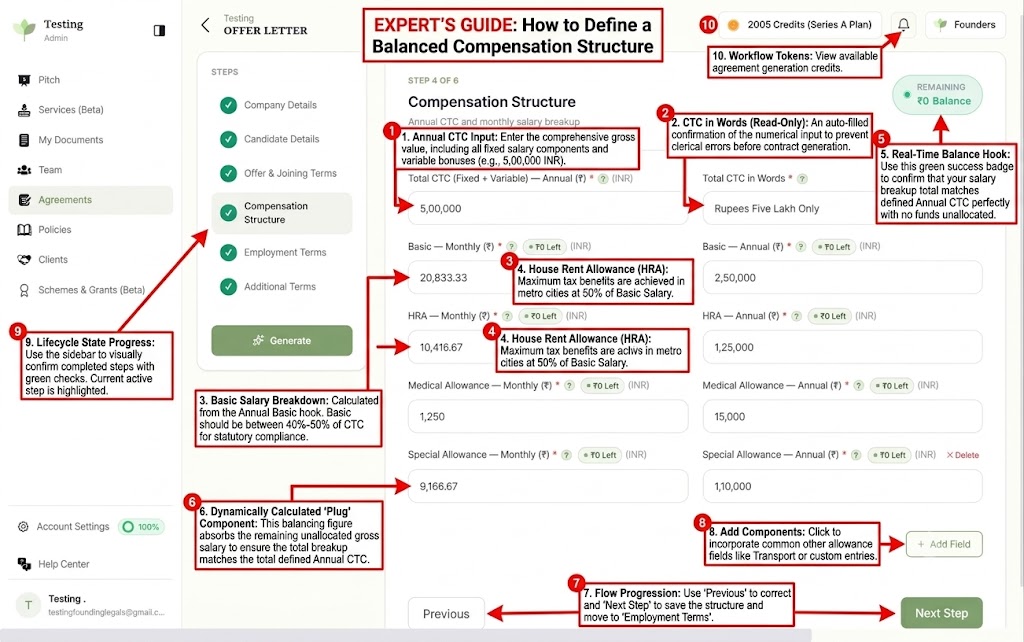
Build a balanced and compliant salary breakup: This step is the financial heart of the offer letter. The platform provides a real-time salary builder that automatically calculates all components from your Annual CTC input:
- Total CTC (Annual): Enter the comprehensive gross annual value, including all fixed and variable pay components (e.g., ₹5,00,000). This is the primary anchor value for all subsequent calculations.
- Total CTC in Words (Read-Only): An auto-populated numerical confirmation that prevents clerical errors before contract generation. Verify this matches your intended amount.
- Basic Salary (Monthly & Annual): Auto-calculated from the Annual CTC. Best practice is to keep Basic between 40% to 50% of CTC for statutory PF compliance. Lowering Basic reduces employer PF liability but can affect employee gratuity and loan eligibility.
- House Rent Allowance — HRA (Monthly & Annual): Typically set at 50% of Basic Salary for metro cities (Mumbai, Delhi, Bengaluru, Chennai) or 40% for non-metro cities. HRA provides maximum tax benefits to the employee under Section 10(13A) of the Income Tax Act.
- Medical Allowance (Monthly & Annual): A standard component added for employee health and wellness benefit coverage.
- Special Allowance (Monthly & Annual): A dynamically calculated plug component that absorbs the remaining unallocated gross salary to ensure the total breakup matches the defined Annual CTC perfectly, with no funds unallocated.
- Add Field Button: Use this to add additional standard components such as Transport Allowance, LTA, or custom performance bonuses.
Monitor the Remaining Balance indicator in the top-right corner of the form. It must show ₹0 Balance before proceeding, confirming your salary structure is fully balanced.
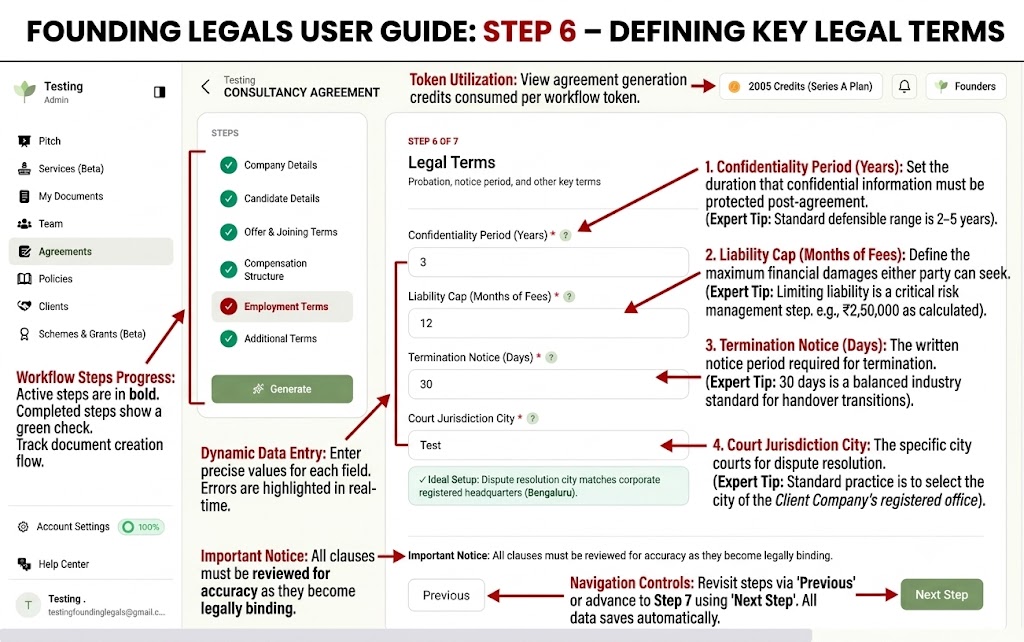
Set the governing legal parameters of the employment relationship: This step defines the key protective and operational covenants that make the offer letter a legally enforceable document. Each value entered here carries binding legal weight:
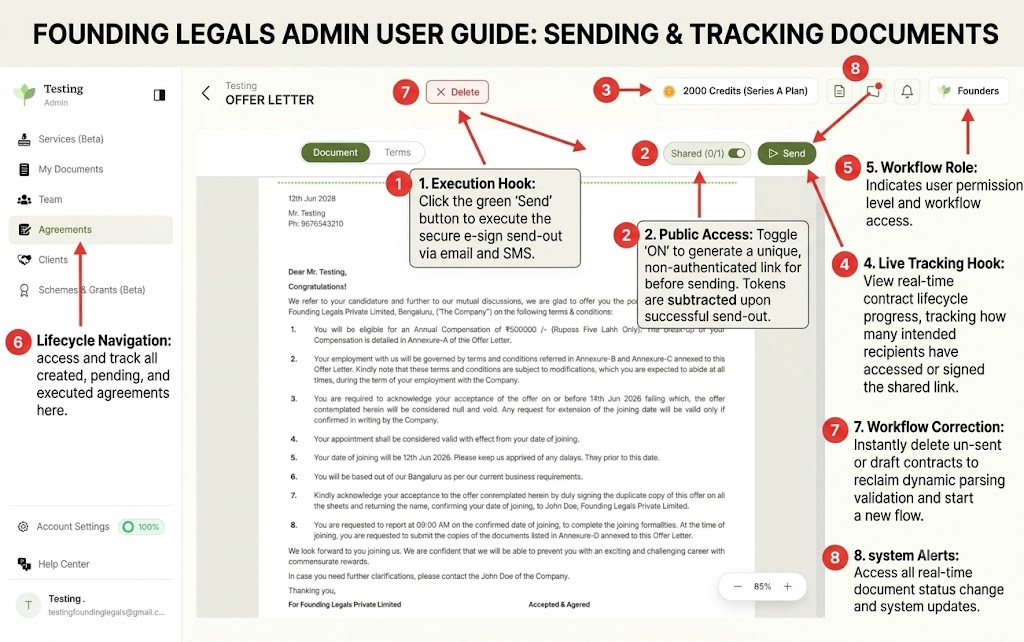
- Confidentiality Period (Years): Set how long confidential information must be protected after the employment relationship ends. The standard defensible range under Indian law is 2 to 5 years. Excessively long periods may be ruled unenforceable by courts.
- Liability Cap (Months of Fees): Define the maximum financial damages either party can seek in case of a dispute. Limiting liability is a critical risk management step for your company. A typical cap is 12 months of salary as a calculated ceiling.
- Termination Notice (Days): Enter the mandatory written notice period required for either party to end the employment relationship. 30 days is the industry-standard balanced period that allows proper handover transitions without operational disruption.
- Court Jurisdiction City: Specify the city whose courts will have exclusive jurisdiction over any legal dispute arising from this offer letter. Best practice is to select the city of your company's registered office (e.g., Bengaluru) to ensure litigation convenience.
All entries in this section are displayed to the candidate in the offer letter. Review every value for accuracy before proceeding, as these clauses are legally binding upon acceptance.
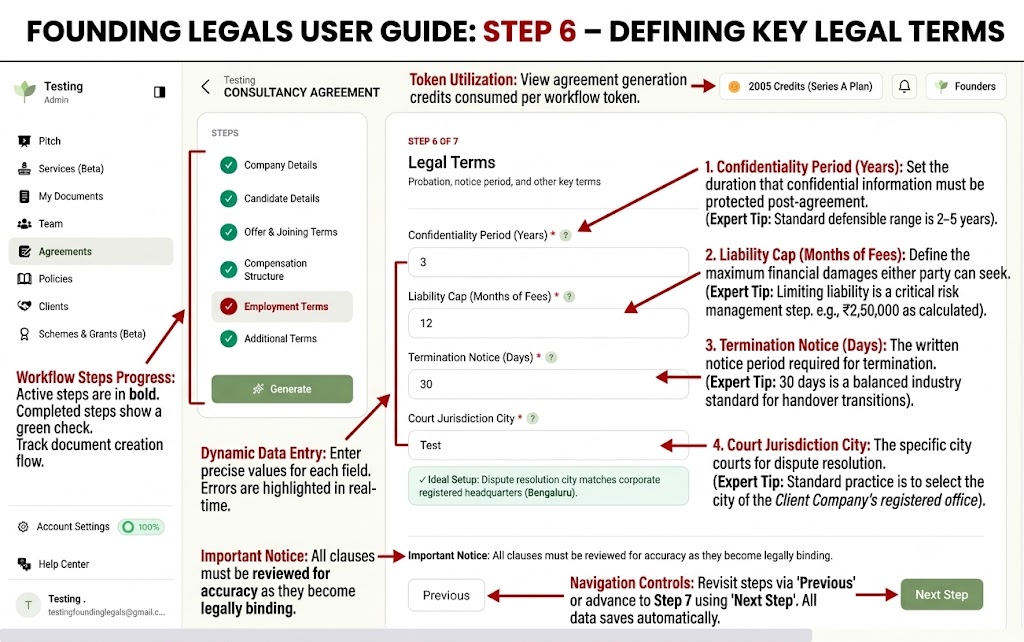
Execute and monitor the complete offer lifecycle: Once all six steps are complete and the sidebar displays green checkmarks, click the green "Generate" button. The platform opens the live document viewer with your completed, formatted offer letter. From this final screen you can:
- Send the Offer: Click the green Send button to execute a secure e-sign send-out to the candidate via email and SMS. Tokens are deducted from your balance upon successful dispatch.
- Enable Public Access: Toggle the Shared switch to ON to generate a unique, non-authenticated link for the document. This allows you to share the offer via WhatsApp or any channel without requiring the candidate to log in.
- Live Tracking: Monitor real-time contract lifecycle progress — track how many recipients have accessed or signed the shared link directly from this screen.
- Token Balance: Your credit balance is displayed at the top-right. Ensure sufficient credits are available before initiating the send-out.
- Delete Draft: Use the Delete button to instantly remove un-sent or draft contracts, freeing up processing resources and allowing you to start a fresh workflow.
- System Alerts: The notification bell icon provides real-time document status changes, sending confirmations, and system-level updates.
The Offer Acceptance Deadline must always fall before the Date of Joining. Setting a joining date earlier than the acceptance deadline is legally and logically flawed — it implies the employee starts work before formally accepting the offer — and will trigger a generation error on the platform. Always verify that the acceptance window allows the candidate adequate time to review, seek legal counsel if needed, and formally respond.
Before clicking Generate, confirm the Remaining Balance indicator on the Compensation Structure step reads ₹0 Balance. Any unallocated amount means your salary breakup does not total the stated Annual CTC, which will cause mathematical inconsistencies in the offer letter. Use the Special Allowance component as the balancing plug, or add custom allowance fields to absorb any remaining amount.
Quality Assurance
Reviewed by Manoj Kumar Thota
Founder / Developed Founding Legals
About the Author
Manoj Kumar Thota is the creator behind Founding Legals