How to Draft a Non-Compete Agreement
Quick Summary
A Non-Compete Agreement is a critical IP protection tool that prevents employees, contractors, and business associates from working with competitors or soliciting your clients and team members. Learn how to configure and generate a legally enforceable Non-Compete Agreement on Founding Legals.
Protect Your IP — Agreement Type
This agreement falls under the Protect Your IP category on the Founding Legals Agreements page, alongside the Mutual NDA, IP Assignment Agreement, Technology Transfer Agreement, Software License Agreement, and Trademark License Agreement.
Drafting Your Non-Compete Agreement
A Non-Compete Agreement is one of the most powerful — and most misunderstood — legal instruments available to a founder. It contractually prevents an employee, contractor, or business associate from directly or indirectly working with a competitor, soliciting your clients, or poaching your team members during and after their engagement with your company. Under Indian contract law, non-compete covenants are enforceable when they are reasonable in scope, duration, and geographic territory. The Founding Legals platform structures this agreement across a clear 6-step wizard to ensure every clause is precise, balanced, and legally defensible.
Step-by-Step Guide to Creating a Non-Compete Agreement
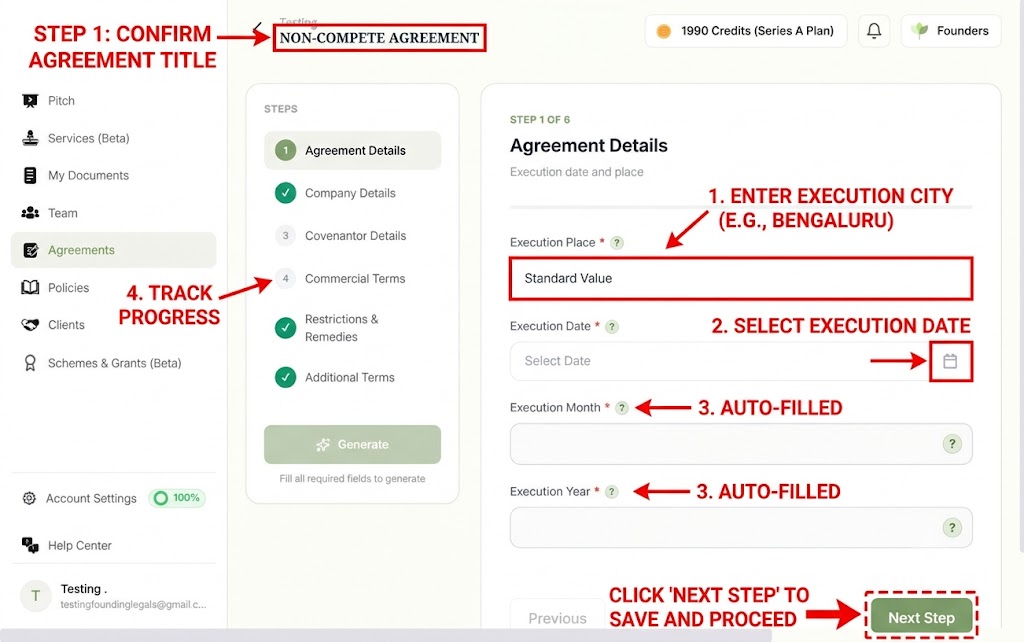
Access the module: From your Founding Legals dashboard, click Agreements in the left-hand navigation panel. On the Agreements landing page, scroll to the Protect Your IP section — positioned below the Hire Someone category. Locate the Non-Compete Agreement card, described as preventing employees and business associates from working with competitors or soliciting your clients and team. Click the green + Create button to start the workflow.
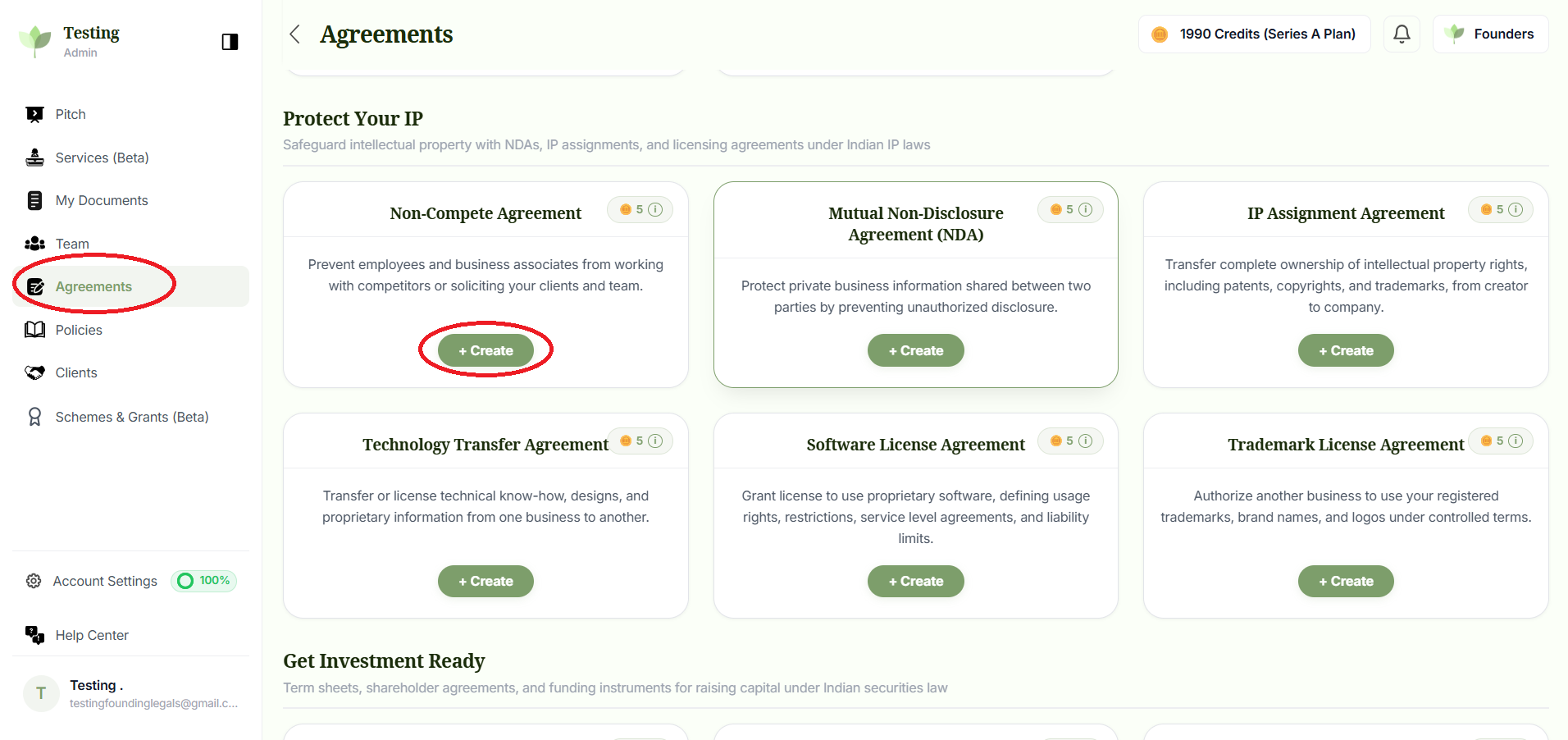
Assign the individual bound by this agreement: A Select Recipient panel slides in from the right. The recipient in a Non-Compete Agreement is the Covenantor — the person who is legally bound by the non-compete restrictions. This is typically the employee, contractor, or business associate you are engaging. Choose one of the two options:
- Select an Existing Contact: Browse the list of team members or contacts already registered in your Founding Legals account and click to select the relevant individual.
- Add a New Recipient: Click the + Add new recipient button to manually enter the covenantor's details. Use the search bar to quickly check if the person already exists in your records before creating a new entry.
Recipient selection is mandatory to proceed. The system will not allow you to advance to the next panel without a confirmed covenantor.
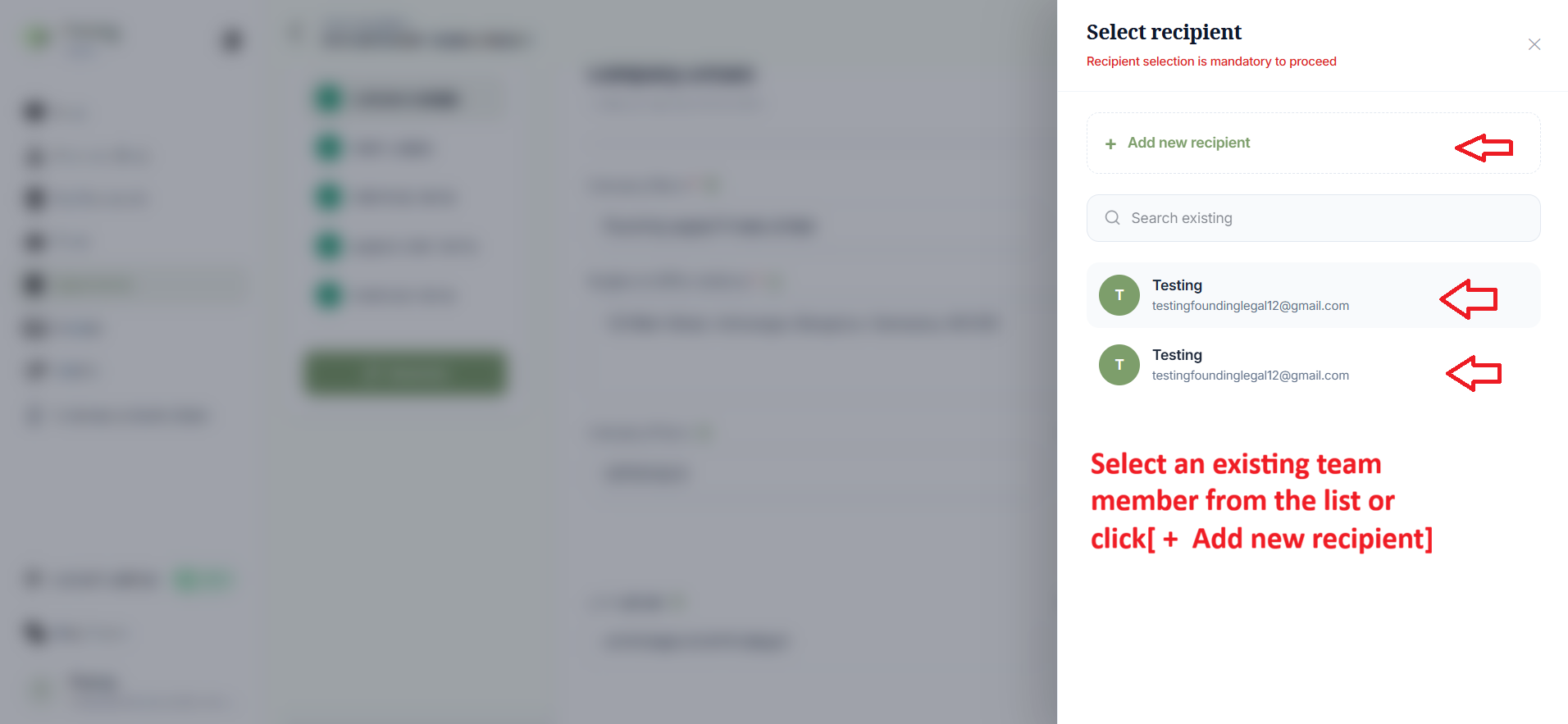
Select your legal baseline: After confirming the recipient, the Choose Agreement Terms panel appears. This determines the legal foundation of your Non-Compete Agreement. Select one of the two options and click Confirm:
- Founding Legals Standard Terms: Pre-populates the agreement with legally vetted, ready-to-use non-compete clauses covering competitive restrictions, solicitation prohibitions, confidentiality obligations, and remedies for breach. Recommended for most startups and growing businesses.
- Custom Terms: Allows you to import, write, or modify your own specialized clauses from scratch. Use this option if your industry has unique competitive restrictions, or if your legal counsel has prescribed specific covenant language.
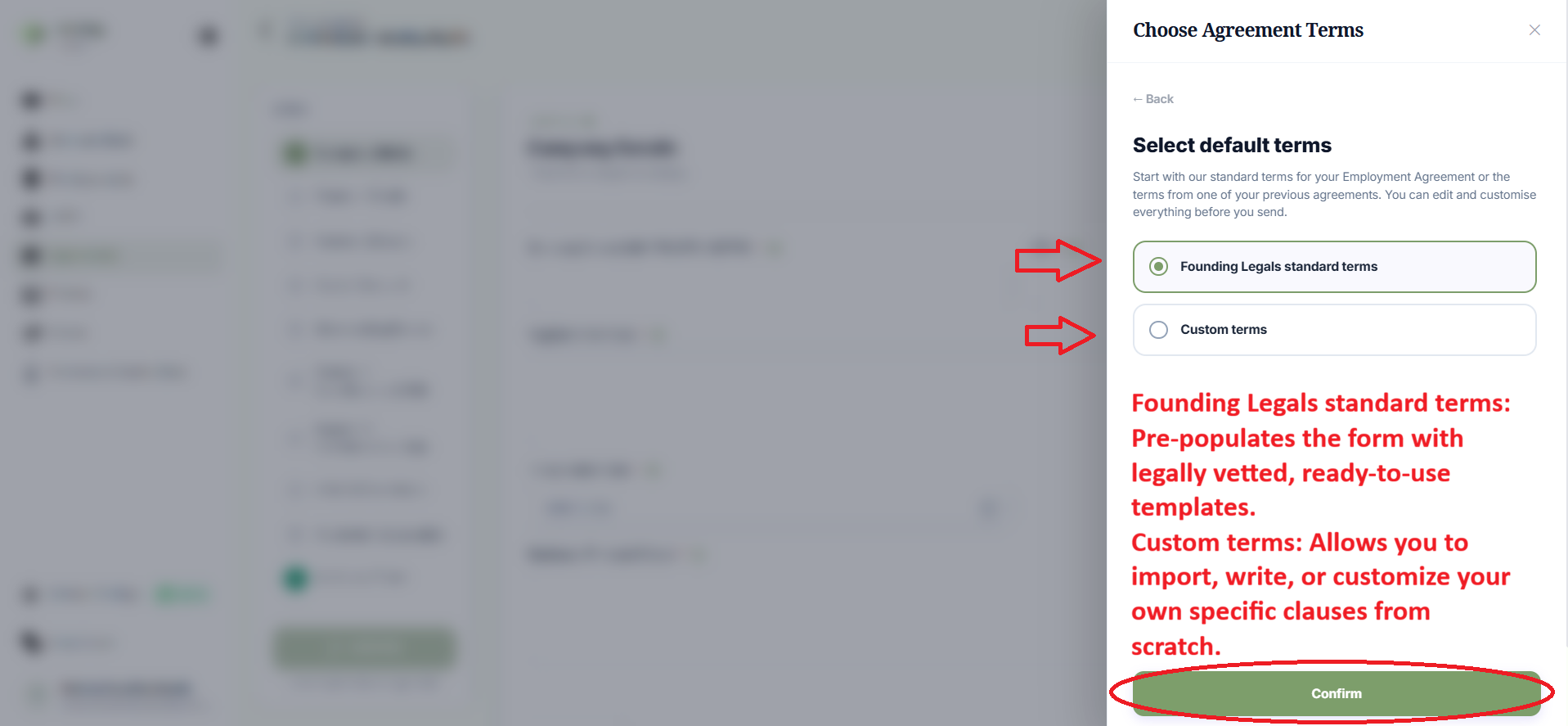
Set the execution parameters of the agreement: The 6-step wizard opens with Agreement Details — the foundational execution metadata of the contract. The breadcrumb at the top confirms you are creating a Non-Compete Agreement. The left-hand sidebar lists all 6 steps: Agreement Details, Company Details, Covenantor Details, Commercial Terms, Restrictions & Remedies, and Additional Terms. Track your progress via the green checkmarks. Complete each field:
- Execution Place: Enter the city where this agreement is being formally executed (e.g., Bengaluru, Mumbai, Chennai). The execution city is cited in the opening clause of the agreement and determines which state's law and courts have primary jurisdiction over the contract.
- Execution Date: Click the calendar icon and select the date on which both parties are formally executing the agreement. This date is the legally effective commencement date of all restrictions and obligations in the contract.
- Execution Month & Execution Year: These fields are automatically populated by the platform the moment you select the Execution Date. You do not need to fill them manually — they auto-fill to ensure formatting consistency throughout the generated document.
Click Next Step to save these details and proceed to Company Details.
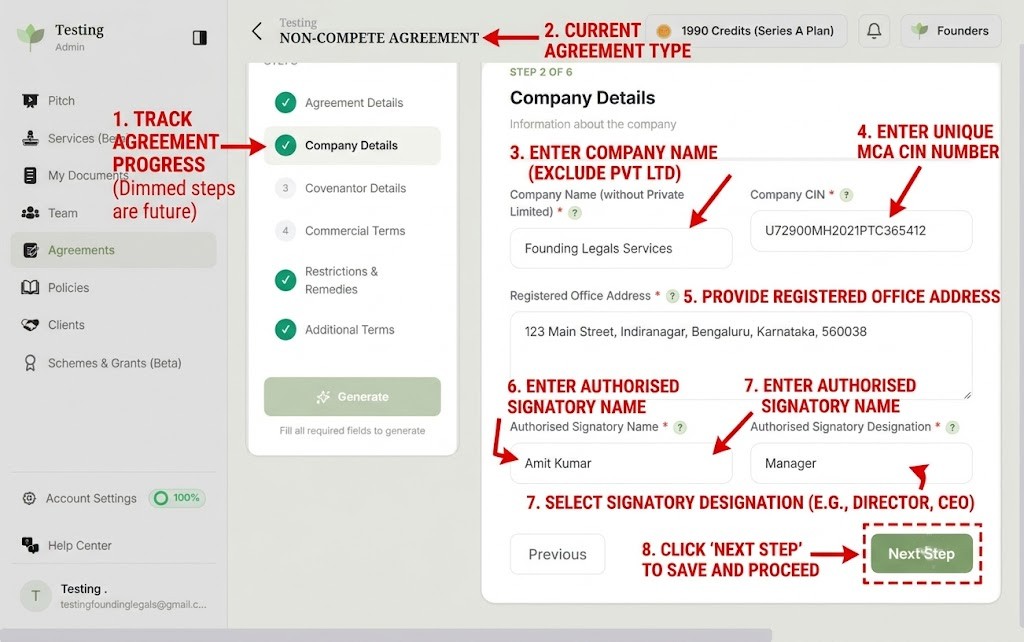
Enter the company's legal identity: This step establishes the legal identity of the company that is the beneficiary of the non-compete covenants — the party the covenantor is agreeing not to compete against. Note that the Company Name field in this agreement uses the short-form version without the corporate suffix. Complete all fields carefully:
- Company Name (without Private Limited): Enter the company's short-form trading name, excluding the "Private Limited" suffix (e.g., Founding Legals Services). The platform appends the full legal suffix automatically in the generated agreement text.
- Company CIN: Enter your 21-character alphanumeric Corporate Identification Number as registered with the MCA (e.g., U72900MH2021PTC365412). This uniquely identifies your company in the agreement's parties clause.
- Registered Office Address: Provide the complete registered address as filed with the MCA. This address appears in the agreement's parties section and governs the legal domicile of the company for jurisdictional purposes.
- Authorised Signatory Name: Enter the full name of the company representative who is signing the Non-Compete Agreement on behalf of the company (e.g., Amit Kumar).
- Authorised Signatory Designation: Enter the official title of the authorized signatory (e.g., Director, Manager, CEO). This person must be authorized by the Board or company charter to execute legal agreements and bind the company.
Click Next Step to save and proceed to Covenantor Details.
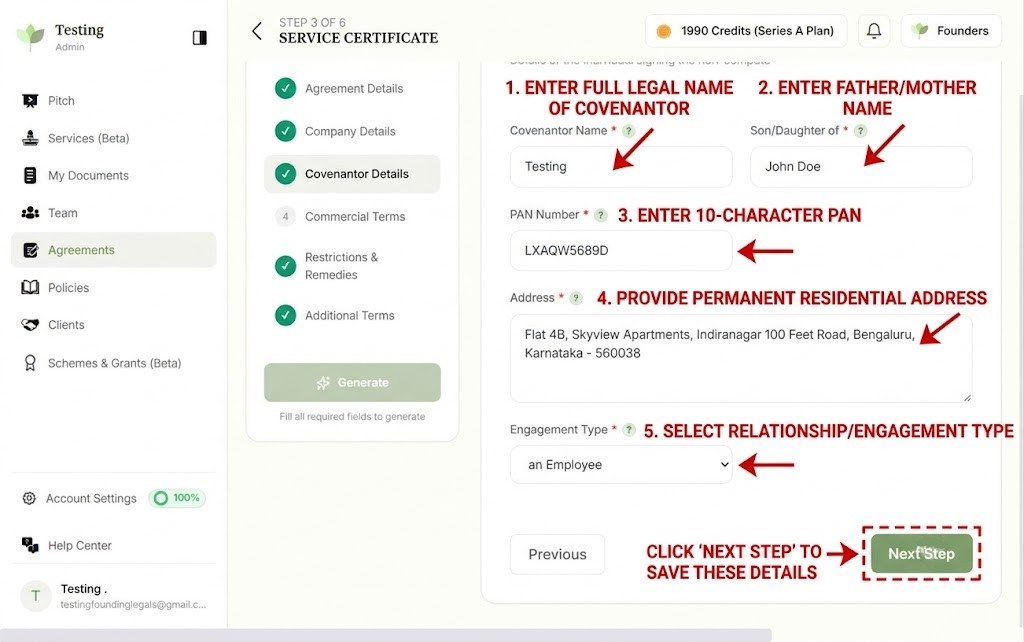
Enter the individual bound by the non-compete restrictions: The Covenantor is the person who will be legally restricted from competing with your business. This section captures their complete legal identity as it will appear in the agreement. Every field here maps verbatim into the Parties clause:
- Covenantor Name: Enter the individual's full legal name exactly as it appears on their PAN card or Aadhaar. Any name discrepancy can create enforcement challenges if the agreement is contested in court.
- Son/Daughter of (Father's / Mother's Name): Enter the name of the covenantor's parent as it appears on their official identity documents. This field is standard in Indian legal agreements as it provides an additional layer of identity verification beyond the name alone, reducing the risk of identity disputes.
- PAN Number: Enter the covenantor's valid 10-character Permanent Account Number (e.g., LXAQW5689D). The PAN uniquely identifies the individual for tax and government record-keeping purposes and strengthens the legal traceability of the covenantor.
- Address: Enter the covenantor's complete permanent residential address including flat/house number, street, locality, city, state, and PIN code (e.g., Flat 4B, Skyview Apartments, Indiranagar 100 Feet Road, Bengaluru, Karnataka - 560038).
- Engagement Type: Select the nature of the covenantor's relationship with your company from the dropdown — for example, an Employee, a Consultant, or a Business Associate. This selection determines the legal framing of the recitals and governs which specific non-compete clauses are most applicable.
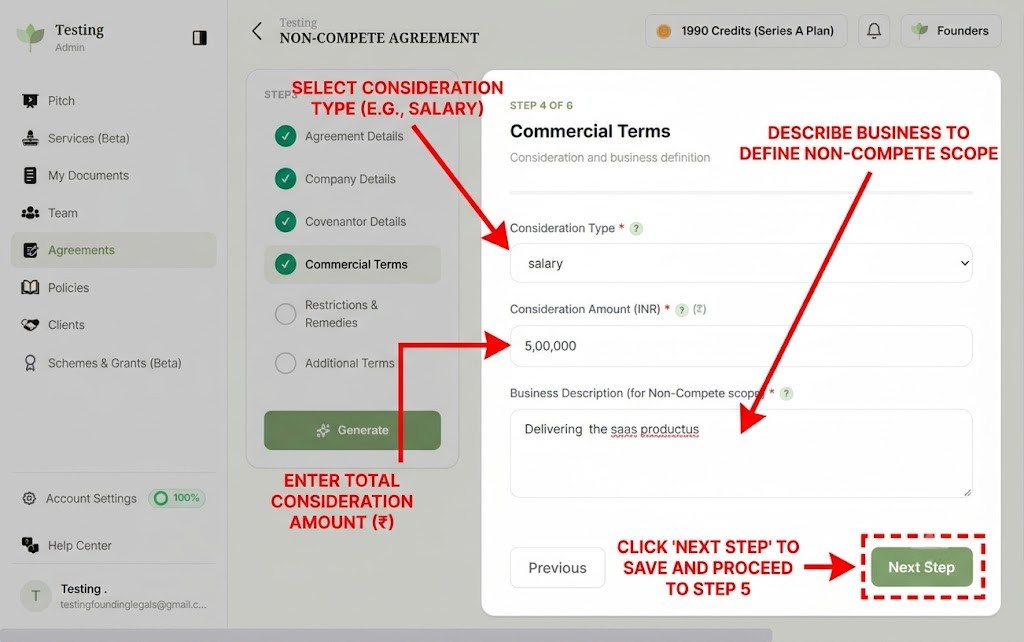
Define the commercial basis and competitive scope of the agreement:This step establishes the financial consideration being paid in exchange for the covenantor's agreement not to compete, and clearly defines the scope of business activities that are subject to restriction:
- Consideration Type: Select the nature of the financial benefit the covenantor is receiving in exchange for agreeing to the non-compete restrictions. Common options include Salary (for employees), Consulting Fee (for contractors), or other agreed monetary forms. Under Indian contract law, a non-compete agreement must be supported by valid consideration — the covenantor must receive something of value in return for accepting the restrictions. A non-compete without consideration is generally unenforceable.
- Consideration Amount (INR): Enter the total monetary value of the consideration being exchanged (e.g., ₹5,00,000). This amount is stated in the recitals of the agreement and forms the contractual basis for the restrictions.
- Business Description (for Non-Compete scope): Write a precise, specific description of the company's business activities that define the competitive landscape the covenantor is restricted from entering (e.g., "Delivering SaaS products for startup legal documentation and compliance automation"). This description is critical — vague business descriptions lead to courts invalidating the non-compete scope as unreasonably broad.
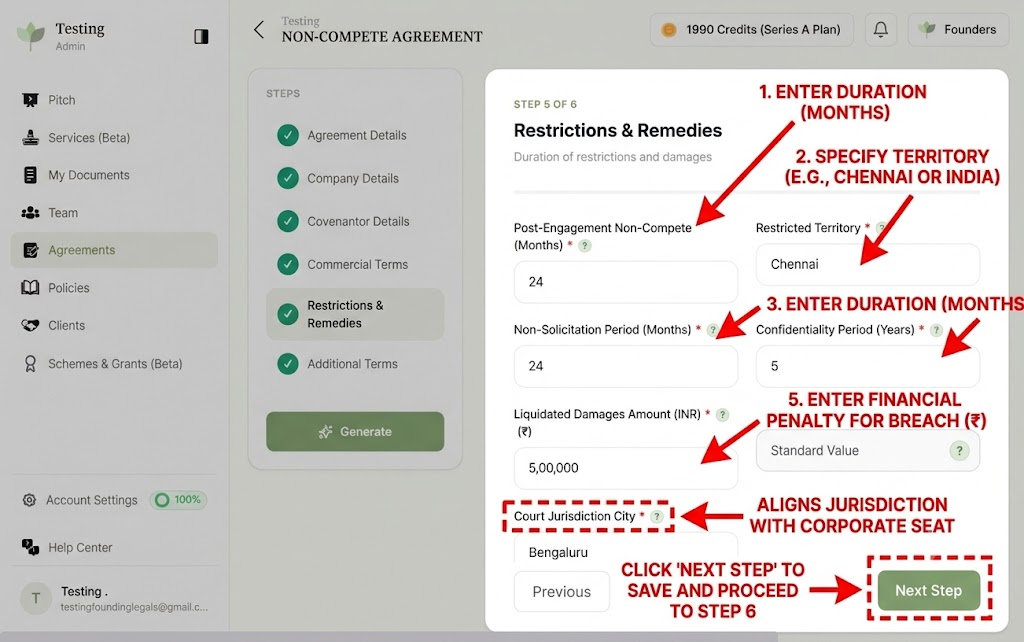
Define the protective boundaries and financial consequences of breach: This is the most legally substantive step of the entire agreement. The restrictions and remedies you define here are the core enforceable covenants. Every value must be commercially reasonable and proportionate, as Indian courts have consistently struck down overbroad restrictions:
- Post-Engagement Non-Compete Period (Months): Enter the number of months during which the covenantor is prohibited from competing with your business after their engagement ends (e.g., 24 months). This restriction applies to joining a competitor, starting a competing business, or providing competing services. Indian courts have generally upheld post-engagement non-competes of 12 to 24 months as reasonable — periods exceeding 36 months face increased risk of being declared unenforceable.
- Restricted Territory: Specify the geographic region within which the non-compete restrictions apply (e.g., Chennai, India, South Asia). The territory must be directly linked to where your company actively conducts business. Overly broad territories — particularly worldwide restrictions for a company operating only in India — are routinely struck down by courts.
- Non-Solicitation Period (Months): Enter the number of months during which the covenantor is prohibited from soliciting your employees, clients, and business contacts after their engagement (e.g., 24 months). Non-solicitation clauses are generally viewed more favorably by courts than pure non-compete restrictions and have a higher enforcement rate.
- Confidentiality Period (Years): Set the duration in years during which the covenantor must maintain confidentiality of all proprietary business information, trade secrets, and non-public data they accessed during their engagement (e.g., 5 years). The standard defensible range under Indian IP law is 3 to 5 years.
- Liquidated Damages Amount (INR): Enter the pre-agreed financial penalty the covenantor will be liable to pay if they breach the non-compete restrictions (e.g., ₹5,00,000). This sum must be a genuine pre-estimate of the loss your business would suffer from a breach — it cannot be punitive or disproportionate, or a court may refuse to enforce it.
- Court Jurisdiction City: Enter the city whose courts will have exclusive jurisdiction over disputes arising from this agreement (e.g., Bengaluru). Best practice is to align this with your company's registered office city to ensure litigation convenience.
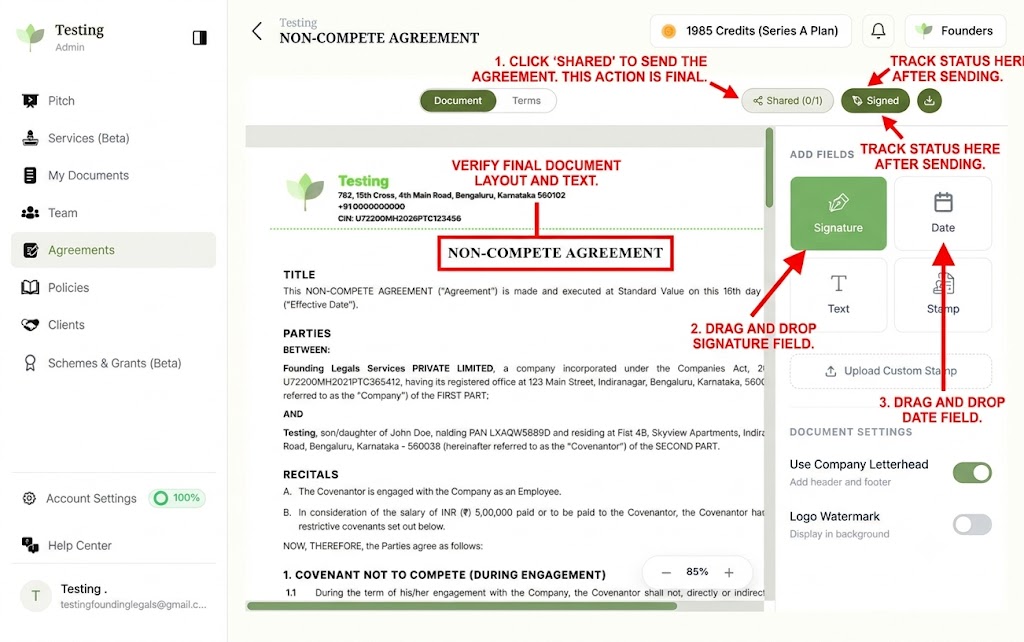
Finalize and deliver the executed agreement: Once all six steps are complete with green checkmarks in the sidebar, click the green Generate button. The platform opens the live document viewer displaying the full, formatted Non-Compete Agreement on company letterhead. The document begins with a Title section, followed by a Parties clause naming both the company and the covenantor, a Recitals section confirming the nature of engagement and consideration, and then the operative Covenant Not to Compete clauses. Before sharing, complete these final actions:
- Verify the Document: Carefully read through the full generated text. Confirm that the company name, covenantor details, consideration amount, business description, restriction period, and territory are all accurately reflected as entered.
- Add Signature Fields (Required): From the Add Fields panel on the right, drag and drop the Signature tile onto the signature lines for both the company signatory and the covenantor. This enables formal digital e-signing by both parties.
- Add Date Fields: Drag the Date tile to the date lines adjacent to each signature block so that the exact date of signing is recorded for both parties.
- Document Settings: Enable Use Company Letterhead to add your official company header and footer. Toggle the Logo Watermark based on your branding preference.
- Share the Agreement: Click Shared to send the agreement to the covenantor for review and e-signing. The counter (e.g., 0/1) tracks how many recipients have signed. This action is final and cannot be undone.
- Track Signed Status: Once the covenantor signs, click Signed to view and download the fully executed Non-Compete Agreement for your legal records.
Under Section 27 of the Indian Contract Act, 1872, any agreement in restraint of trade is void. However, Indian courts have carved out a narrow exception for post-employment non-competes that are reasonable in scope, duration, and territory, and supported by genuine consideration. Blanket non-competes — those that ban an individual from working in any capacity in an industry, without geographic limits, or for periods exceeding 2 to 3 years — are routinely struck down. Always ensure your restrictions are specifically tailored to your actual business interests, and consult your legal counsel before serving a non-compete in a dispute context.
The Business Description field on the Commercial Terms step is not a formality — it is the legal perimeter of your entire non-compete. Vague descriptions like "technology company" or "software services" give courts insufficient grounds to enforce the restriction precisely. Write a specific, focused description of exactly what your company does: the market segment, the type of customers served, the technology or service provided, and the geography. For example: "SaaS-based legal documentation and startup compliance platform serving early-stage Indian founders and DPIIT-registered companies." The more precisely you define your business, the more enforceable your non-compete restriction becomes.
Quality Assurance
Reviewed by Manoj Kumar Thota
Founder / Developed Founding Legals
About the Author
Manoj Kumar Thota is the creator behind Founding Legals